




Anthropic’s Model Context Protocol (MCP) can give your AI agents new superpowers, but if you’re not careful, it can also overload them with stuff they don’t need or infect them with malicious code. In December, Anthropic donated MCP to the Agentic AI Foundation (AAIF) and announced that more than 10,000 public MCP servers have already been spun up. But as more and more service providers join the bandwagon, enterprises are finding that getting in on the fun isn’t exactly a turnkey proposition.
For starters, if you want MCP to work outside of Claude, you’ll need to build and maintain your own custom client. Next, you’ll want access controls to govern who can use what tools and to prevent bloat and context overload. And once you’re finally up and running, brace yourself for some truly novel threat vectors.
To make MCP a little more approachable for enterprises, we’re rolling out Agentforce MCP Support in beta. Here’s how it works.
A trusted gateway
In Agentforce, connecting your agent to a third-party tool or database is easy. Simply navigate to Setup and click “New” to register a new MCP server. Enter the server you want to add and we’ll fill in the required details for you. Next, use the allowlist to select the tools you want to add.
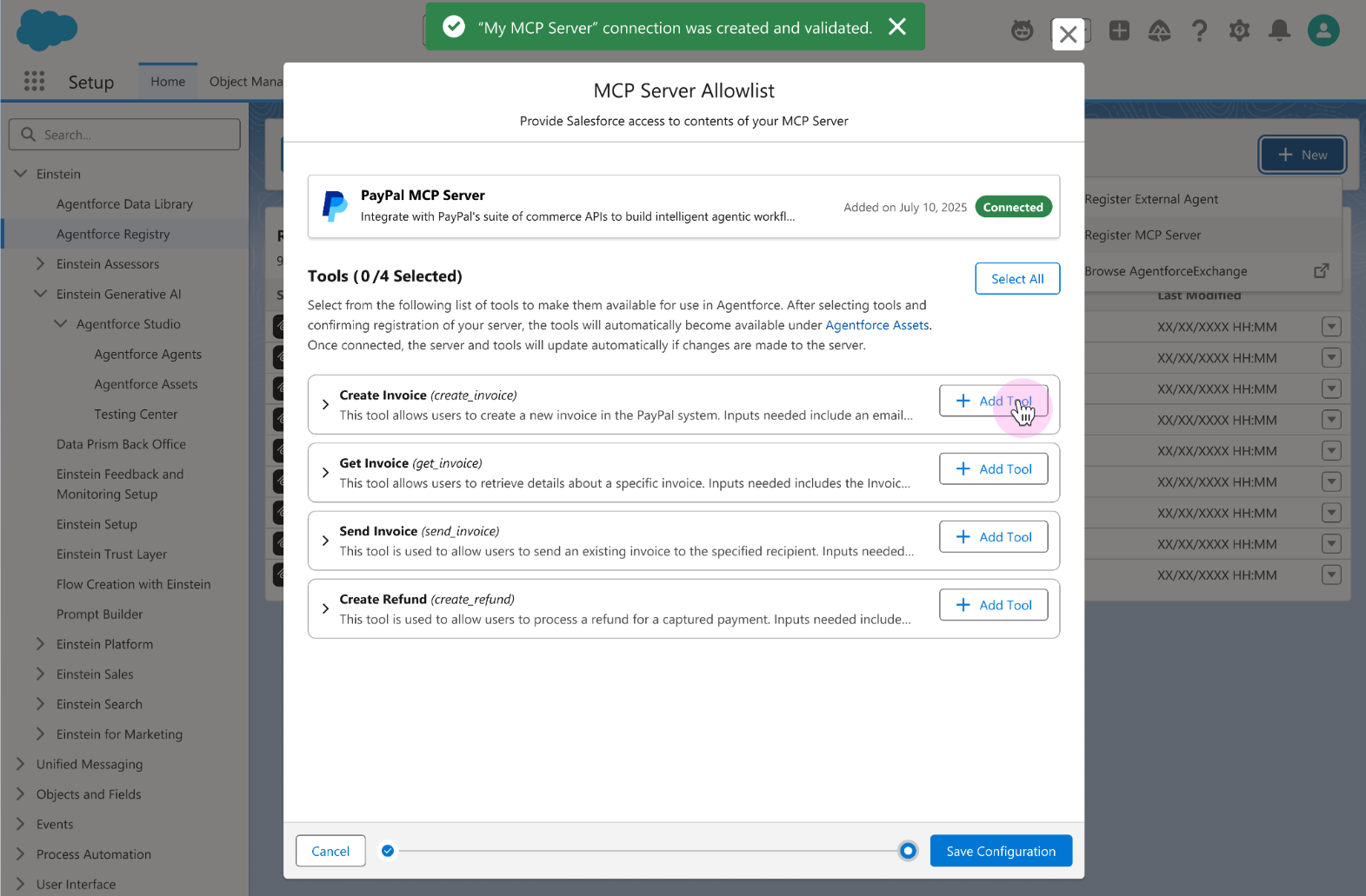
As an admin, you control what servers are connected to the registry and what tools are available to your org through these servers, helping ensure that users don’t accidentally expose corporate data to unauthorized tools. You’ll definitely want that control. In April, AI security research firm Invariant Labs published a bulletin warning of a new form of indirect prompt injection called a Tool Poisoning Attack (TPA). The best defense? Closely vetting and managing each server and tool.
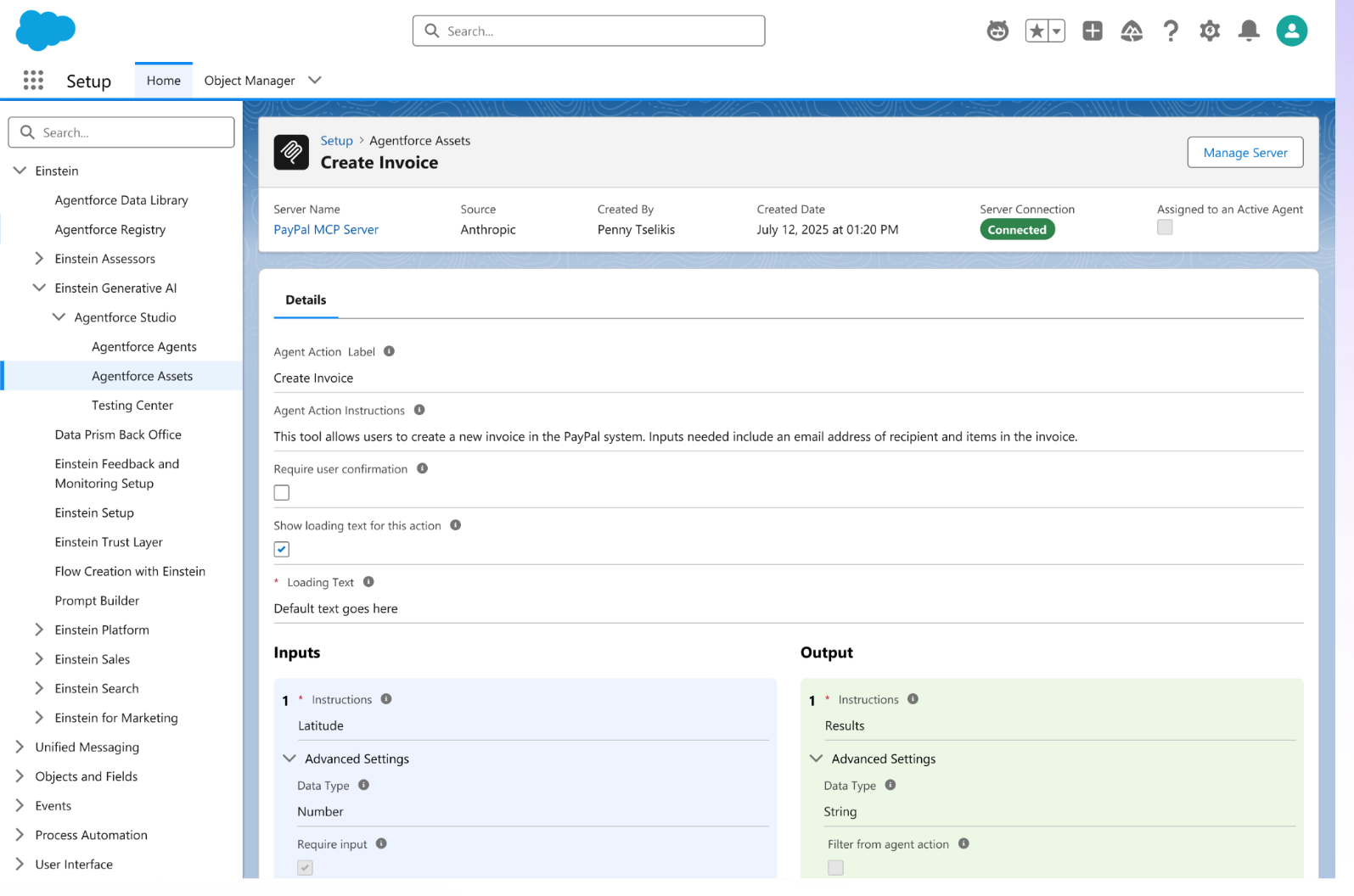
Once you’re done configuring your allowlist, the server details are saved in the registry and each tool is saved as an action in the Agentforce Asset Library. Clicking in on an MCP tool brings up the same detail screen as an agent action.
Now that you’ve connected to an MCP server, it’s time to build!
Getting started with MCP
After you’ve connected to an MCP server, you’ll want to equip your agents with their newfound capabilities. We’ve made this easy in Agentforce by integrating MCP directly into the agent builder experience. To start, navigate to Agentforce Builder and open up one of your agents. Select either an existing topic or create a new one, then click “This Topic’s Actions.” Next, click “New” and select “Add from Asset Library.”
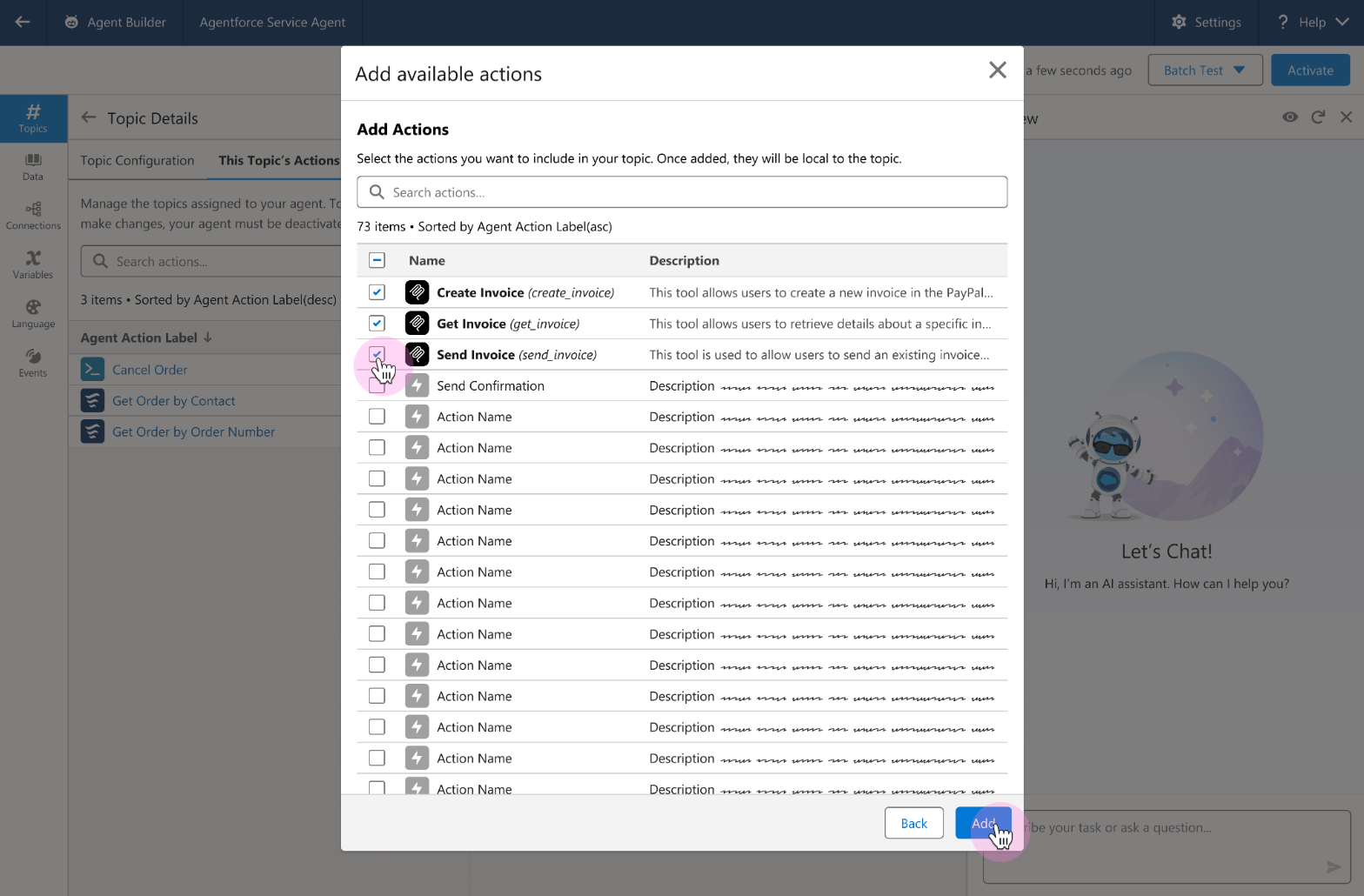
Your new MCP actions will populate into the list of available actions. Select them and click “Add” to include them in this topic.
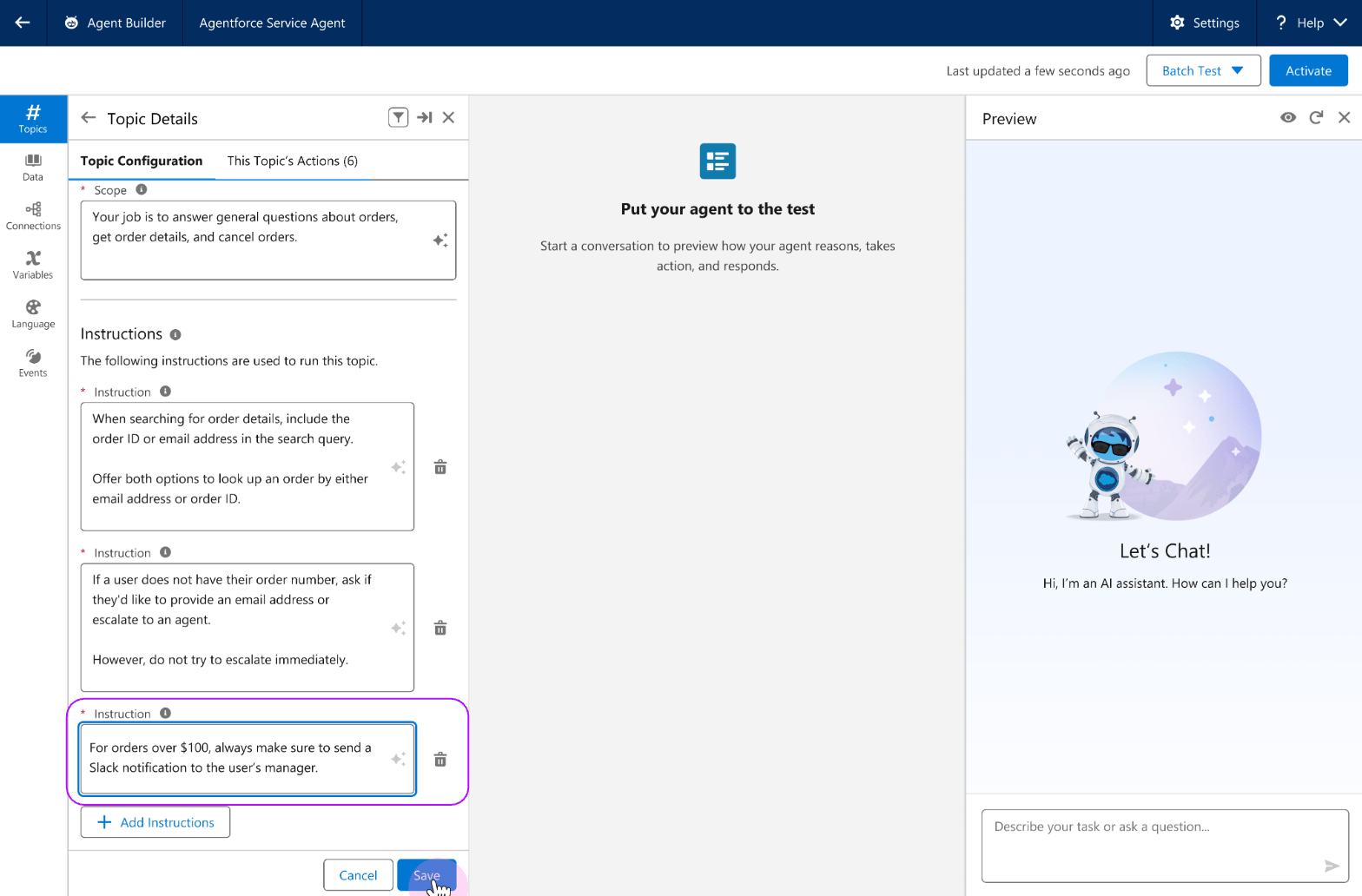
To govern how your agent uses MCP actions, scroll down to add new instructions. In the example below, we’re instructing our agent to send a Slack notification to the user’s manager for any order totaling more than $100.
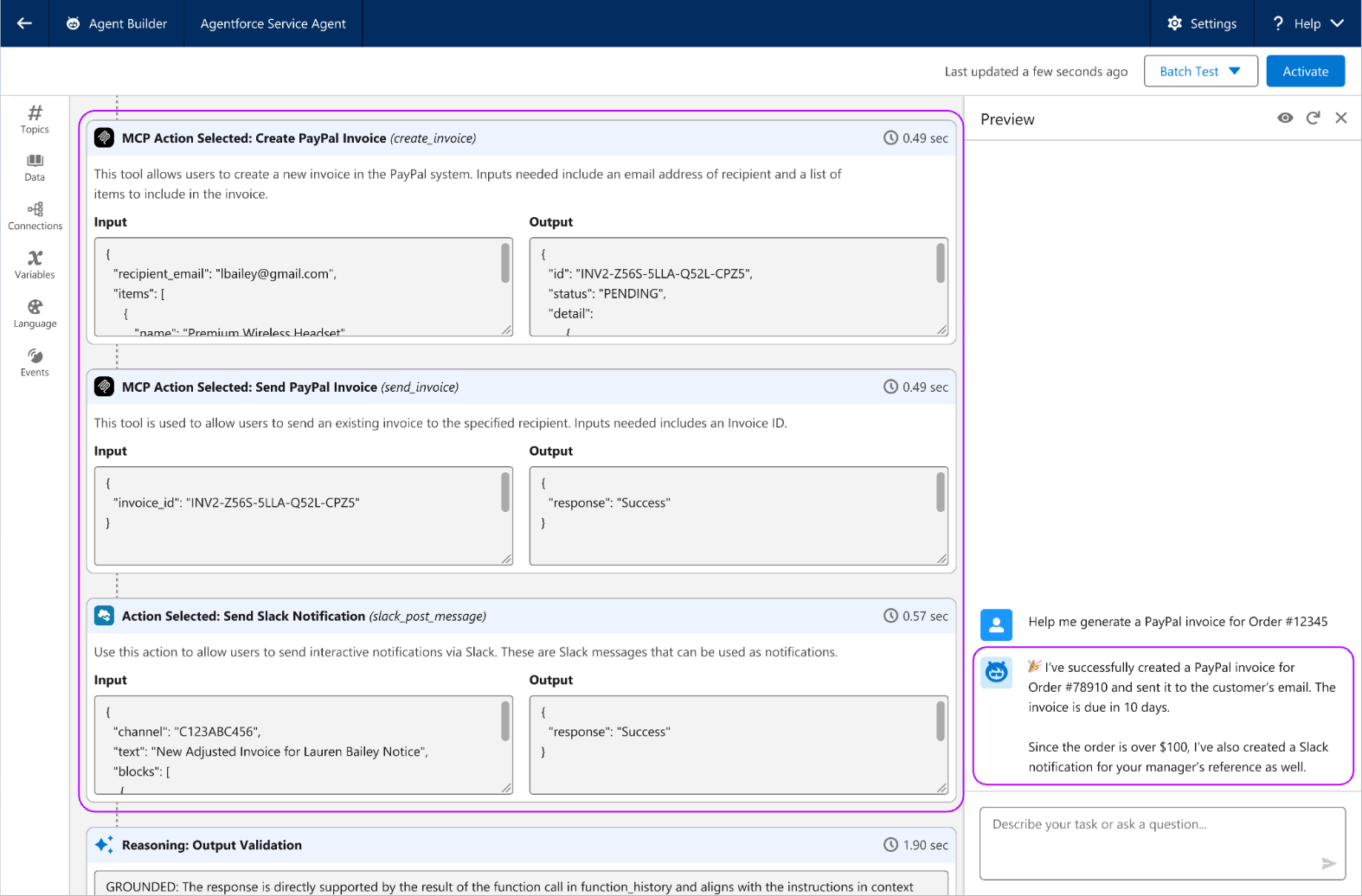
Before deploying your agent, make sure to test whether the new MCP actions and instructions work as intended. Enter a sample prompt and then navigate over to Plan Canvas to see what steps your agent takes. In our example, we asked our Service Agent to generate a PayPal invoice for a specific order number. In the Canvas, we can see which PayPal MCP actions were run, and that a Slack notification was sent to the manager.
As the MCP ecosystem continues to grow, interoperability will become a foundational trait for AI agents. Imagine what your agentic enterprise could achieve with a virtually limitless bag of turnkey tools?
To join the Agentforce MCP beta, reach out to your AE to see if your account qualifies.