




Important note: This article applies to the legacy Agentforce Builder under Setup → Agents.
As of December 2025, a new agent building experience is available in beta via the App Launcher. Interface and steps differ between that beta experience and the legacy experience outlined below.

Contents
I. Language Handling
II. Multilingual Architecture
III. Language and Configurations
IV. Agentforce Supported Languages
V. Known Issues and Workarounds
VI. Appendix: Terminology
VII. Resources
Introduction
LLMs are extraordinarily adept at feats of linguistic wizardry, from summarizing lengthy Zoom calls to generating personalized, compelling sales emails. They’re pretty good at translation, too. But when it comes to the complex world of agentic interactions, multilingual support can get real thorny, real fast.
Most major LLMs are predominantly trained using English and aren’t attuned to the rest of the world’s contexts and cultures. It turns out you can’t simply instruct your AI agent to be a polyglot and expect it to dynamically respond in the correct language every time. From parsing the original knowledge content to respecting browser locale and ensuring cultural subtlety in communication, there’s a lot of nuance to ensuring your AI agent functions reliably in multilingual environments.
Since many of our customers operate in non-English-speaking countries, multilingual support is a core priority at Salesforce. In this guide, we’ll explore the components and configuration settings underpinning multilingual support in Agentforce and provide valuable tips and tricks for dialing in correct responses. This document details Agentforce’s multilingual architecture, outlining how language support is integrated, from session start, to processing user utterances, to action execution. Let’s dive in.

I. Language Handling: How Agents Detect and Respond to User Language
Agentforce architecture is designed to handle language variations using several key variables and processes. These components ensure your agents interpret multilingual user inputs accurately and provide outputs in the correct language.
Let’s start with Language Variables and Settings. Agentforce uses three main language variables:
- End User Language context variable: This variable represents the user’s input language. The agent client explicitly defines its value. The type of agent client in use determines how this variable is populated.
- 1a. For MIAW Clients (Messaging for In-App and Web), like Service Cloud Agent, an administrator sets up a prechat field to populate the End User Language. The end-user language field in the pre-chat form can be automatically populated based on the browser locale settings when the admin sets it up. This means the end-user doesn’t have to manually populate it, making for a smoother user experience. See more about this in Custom Pre-Chat Forms.
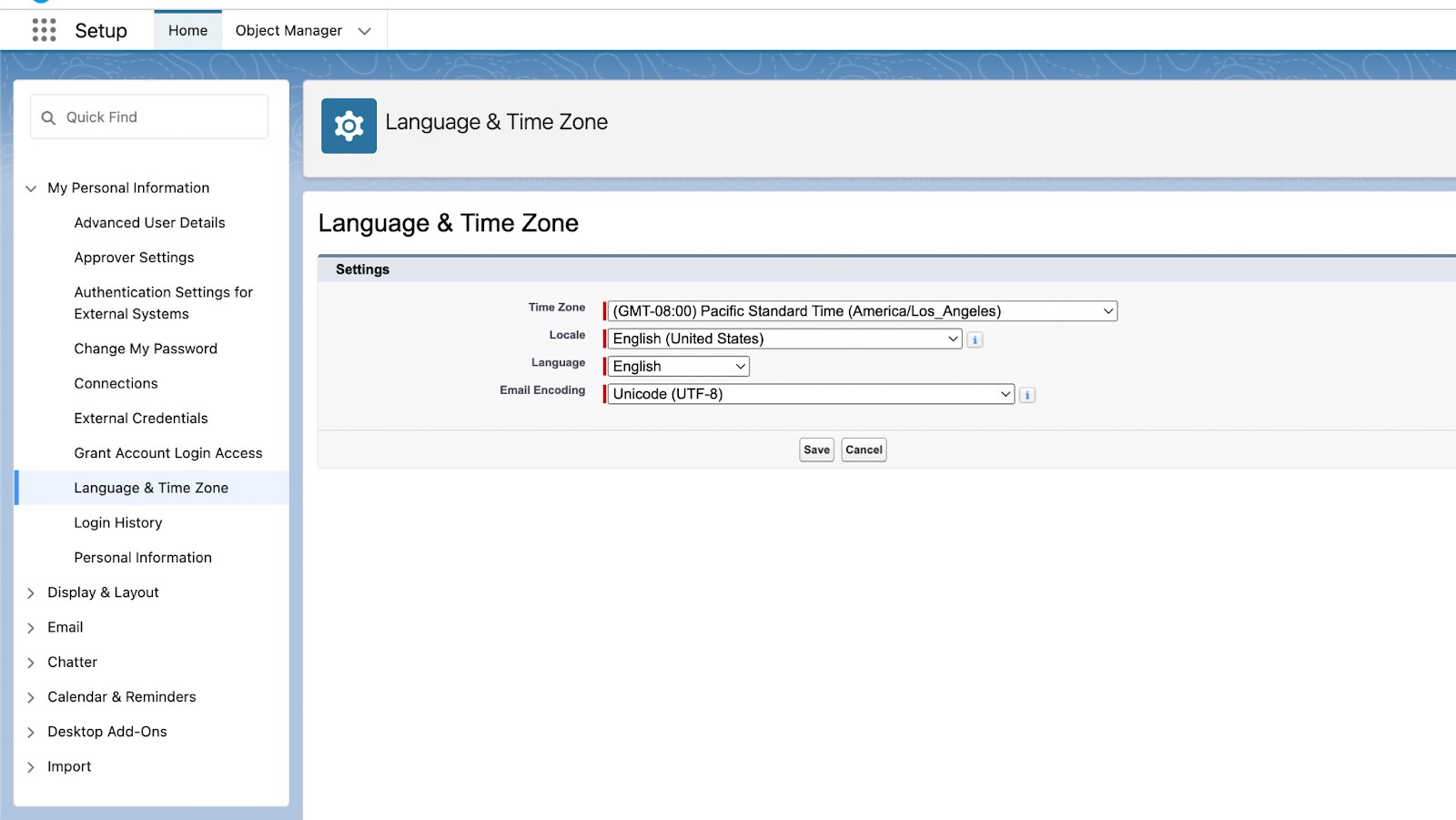
- 1b. For Lightning (LEX) Clients (like Agentforce Default Agent or Agentforce Employee Agent), the system populates the variable from the Salesforce user’s language settings. The LEX Client extracts the org-setting language from the End User Language Context.
- i. To access the Salesforce user’s language settings, go to Profile → Settings → Language & Time Zone → Language.
- 1c. For all other clients using the Agent API (like Sales Cloud Development Rep, Agentforce Coach), the variable is set by following the Agent API guide for sending agent variables.
- Agent Default Language: It’s configured in Agentforce Builder under the “Language” tab. This is the primary or fallback language for the agent. It’s used if no language is detected at the start of a session or if the detected language isn’t supported.
- Agent Secondary Language: This is a set of supported languages the agent can switch to based on language detection. It’s also configured in Agentforce Builder under the “Language” tab under “Available” languages.
System Messages
System messages are only translated in certain scenarios. Let’s look at the expected behavior for system messages.
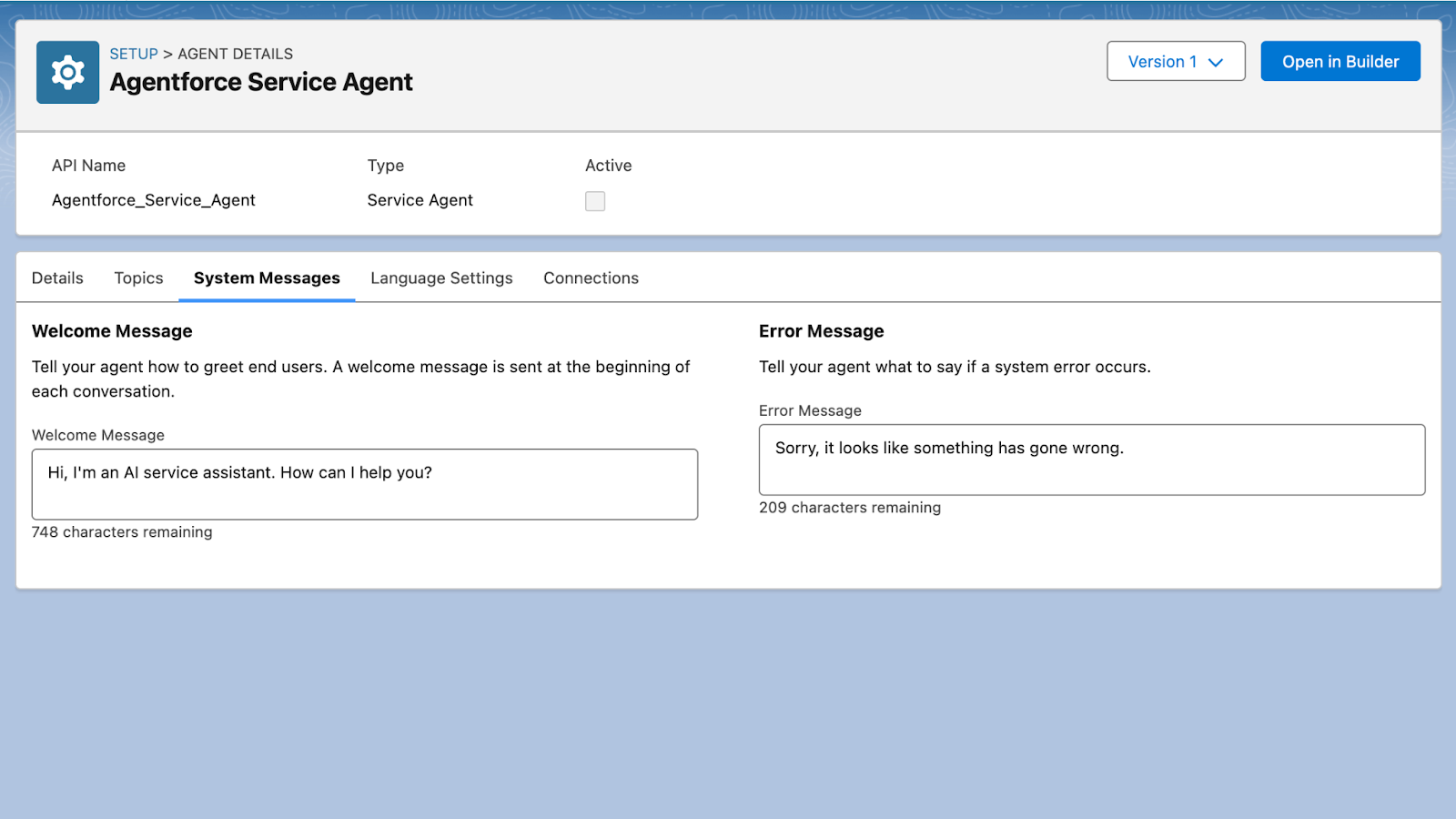
When you set up your agent, you define System Messages for your agent.
- Welcome Message: The greeting your agent says at the beginning of the session when the agent chat window is opened.
- Error Message: The error message when something goes wrong with the agent.
At the start of the session, before the user sends their first input:
- Agentforce tries to resolve the user’s session language based on the End User Language, which will set the Agent’s Welcome Message.
- The Atlas Reasoning Engine translates system messages, which are written in a single language, into the End User Language based on the condition below:
- 2a. Translation will occur if the Agent Default Language is not the same as the End User Language AND your End User Language is allowed for the agent.
- No translation will happen if End User Language = Agent Default Language. This means that we assume system messages to be written in either the End User Language or the Agent Default Language. Otherwise, there is an edge case where User Input Language is different from those two languages, BUT no system message translation will occur.
Expected Behavior | Table 1: System Message Translation
This table explains when the agent will translate its initial greeting or error messages.
| Example | Agent Settings | System Message Language |
| 1 | System Message is written in English Agent Default Language set to English End User Language is set to French | English because only English is allowed for the agent |
| 2 | System Message is written in English Agent Default Language set to English Agent Secondary Language set to French End User Language is set to French | French because EndUserLanguage is different from Agent Default Language and is an allowed language |
| 3 | System Message is written in French Agent Default Language set to French End User Language is set to English | French because the Agent Default Language is the same as the EndUserLanguage and no translation actually occurs |
Session Start
Let’s look at how the agent resolves session language at the beginning of a session.
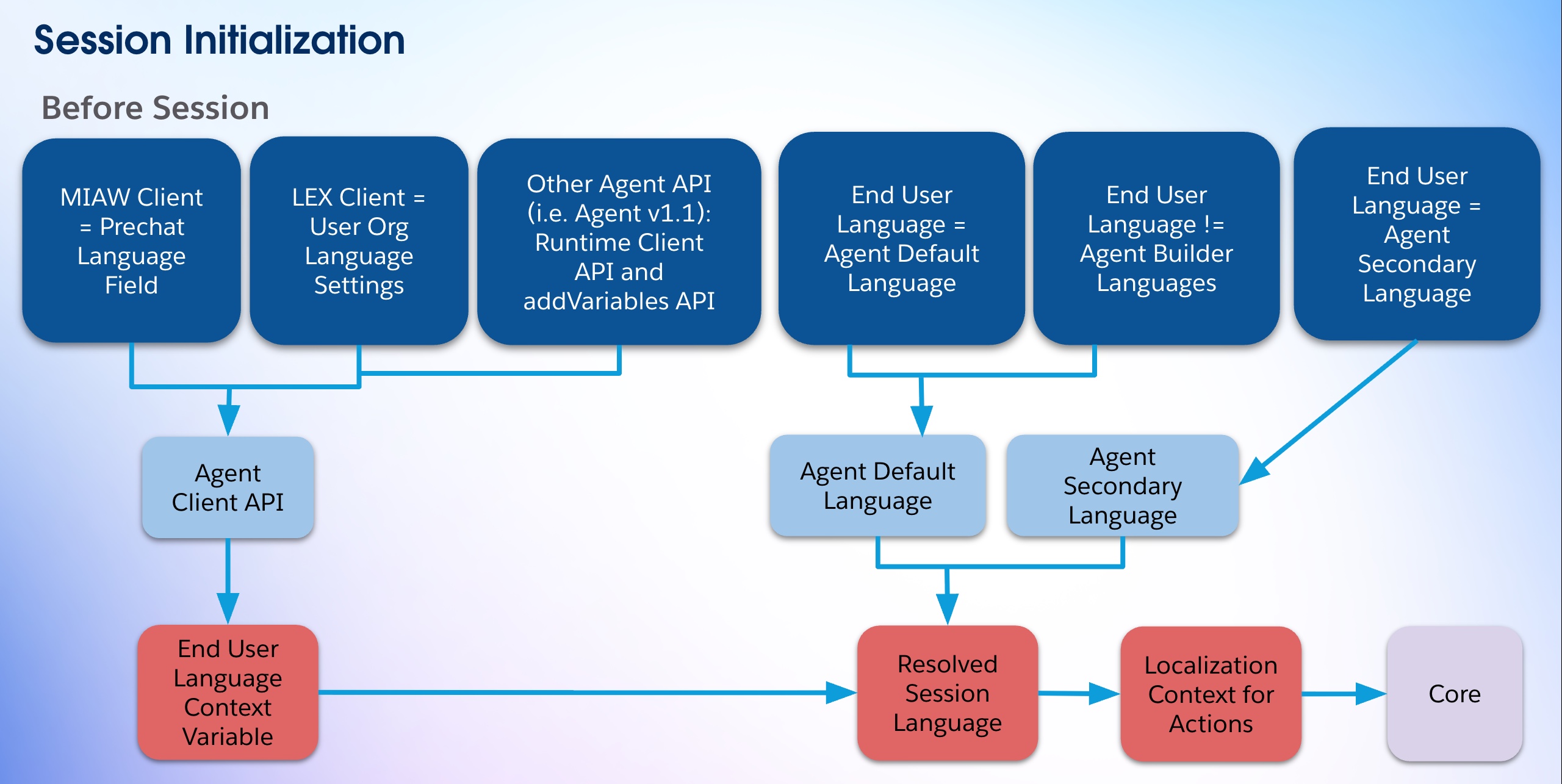
At the start of the session, before the user sends their first input:
- Agentforce tries to resolve the user’s session language based on End User Language which is set by the UI Client of the agent.
- 1a. For Agentforce Employee Agents (AEA), the Lightning Experience (LEX) client populates the End User Language variable with the user’s language in the org settings.
- 1b. For Service Agents (ASA), the administrator has to set up a prechat field that populates the End User Language variable.
- This resolution depends on whether the End User Language context variable is set and if it matches the Agent Default Language or Agent Secondary Languages.
- If no End User Language is set, or if it’s not supported, the system will fall back to the Agent Default Language.
- Once the End User Language is set, it becomes the “session locale” or “resolved session language.” This resolved session locale is stored for the entire duration of the session as the Localization Context variable in Core metadata.
- 4a. Note: Currently, this Localization Context variable doesn’t change or get updated throughout the entirety of the agent session.
- The system passes this Localization Context variable to agent actions, so it will be used as the execution language.
Expected Behavior | Table 2: Localization Context
This table shows how the agent decides which “official” language to use for a user’s session, which affects things like how it searches for help articles.
| Example | End User Language Context Variable | Agent Language Settings | Localization Context |
| 1 | French | Agent Default Language set to French Agent Secondary Language is set to English & Japanese | French because EndUserLanguage is in the default language of the agent |
| 2 | Japanese | Agent Default Language set to French Agent Secondary Language is set to English & Japanese | Japanese because EndUserLanguage is in the agent’s secondary languages |
| 3 | Russian | Agent Default Language set to French Agent Secondary Language is set to English & Japanese | French because EndUserLanguage is not in the Agent’s default or secondary language lists, so the agent defaults to the Agent default language |
User Input
When an agent is set up with English as the default language and Portuguese and Spanish as additional languages, the agent prioritizes the language of the user’s input within a conversation, as long as it’s one of the agent’s default or secondary languages.
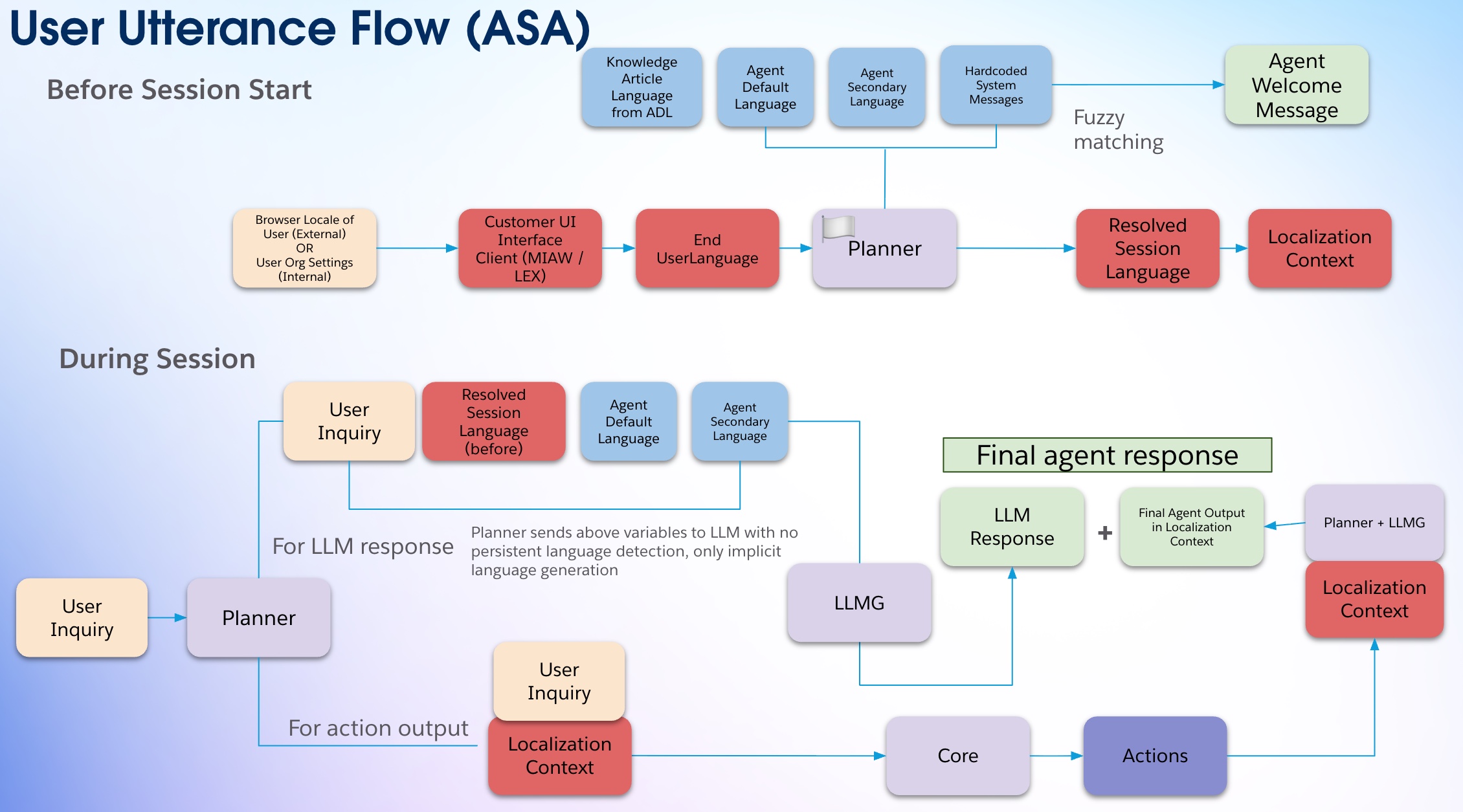
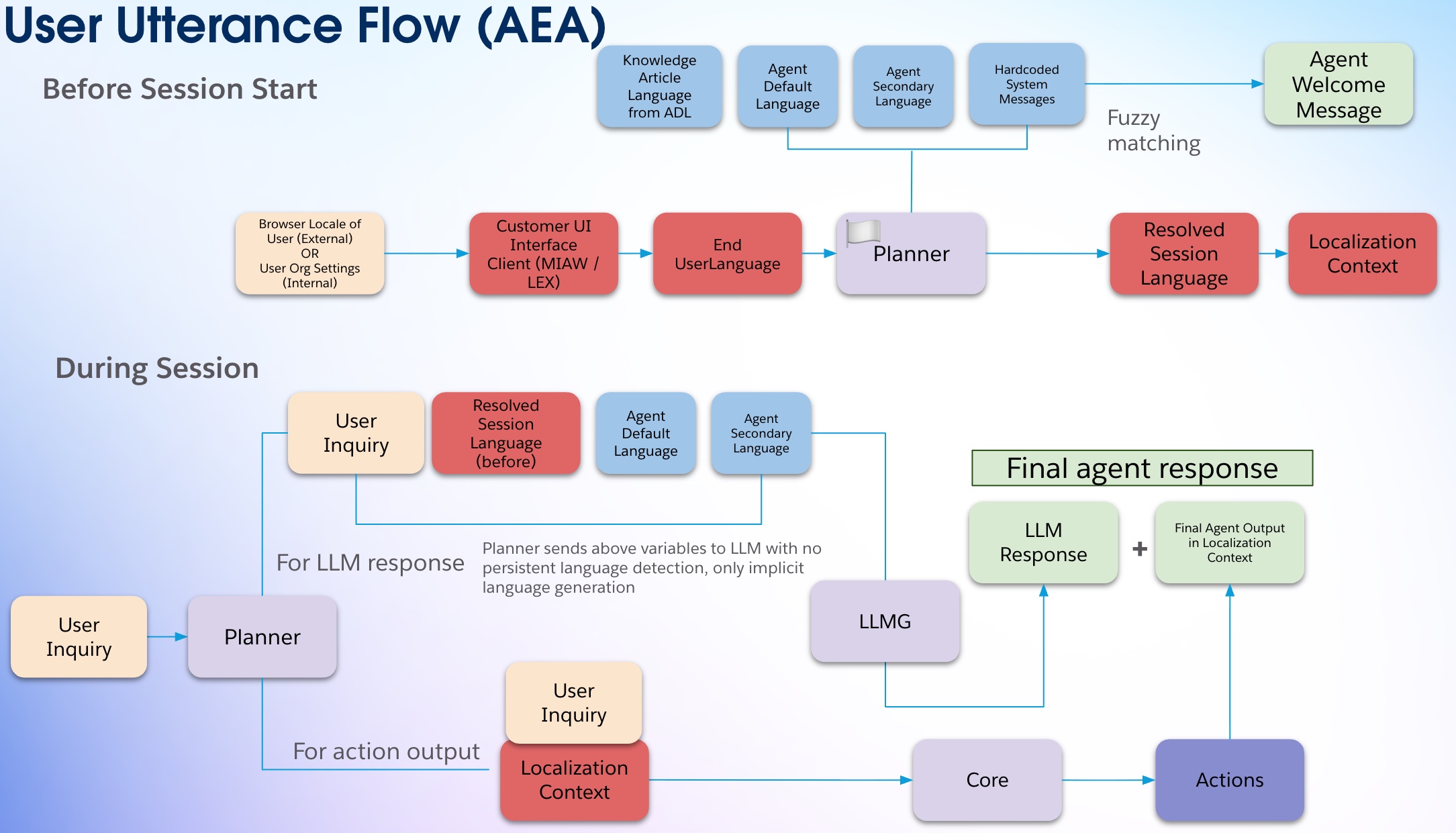
Here’s how it works in practice:
- End User Language is set at session start by the end user as English.
- User asks a question in Spanish: The agent responds in Spanish.
- User then asks a question in English (in the same conversation): The agent switches and responds in English, even though the user’s default language is Spanish.
- User then asks a question in Portuguese (in the same conversation): The agent switches again and responds in Portuguese.
- Content from action execution that is triggered from user input stays in End User Language (English) through the entire session. The agent’s response that wraps around the action execution will be dynamic. For example, you might see a mixed-language response like “Asunto: Issues with Canvas.”
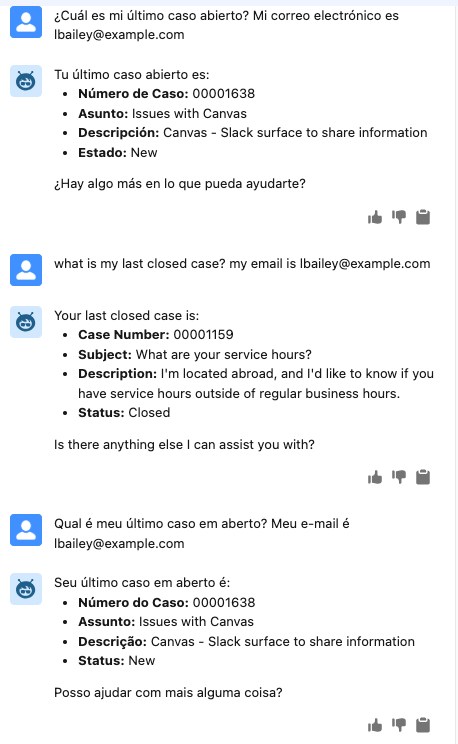
Essentially, the agent respects the languages it’s configured to understand. If you ask a question in a language not defined for the agent, it may not provide an answer in that language. Instead, it will communicate its inability to respond in the user’s asked language. In this example, a user asks a question in Italian. The agent isn’t configured to use Italian, so it answers in Italian only long enough to note the languages it is set up to use.
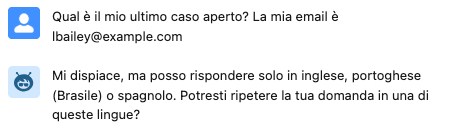
The agent replies in Italian, but only to say, “I’m sorry, but I can only answer in English, Portuguese, or Spanish. Could you repeat your question in one of these languages?”
This behavior ensures the agent is responsive to the immediate language of the user’s query, while also maintaining boundaries for languages it isn’t set up to handle.
Note: You may see different behavior between agents. For example, some users noted that Service Cloud Agent will specify the languages an agent can respond in, while Agentforce (Default) will often respond in the detected language.
How to Test Language Accurately in Agentforce Builder
Follow these steps to test your language in Agentforce Builder.
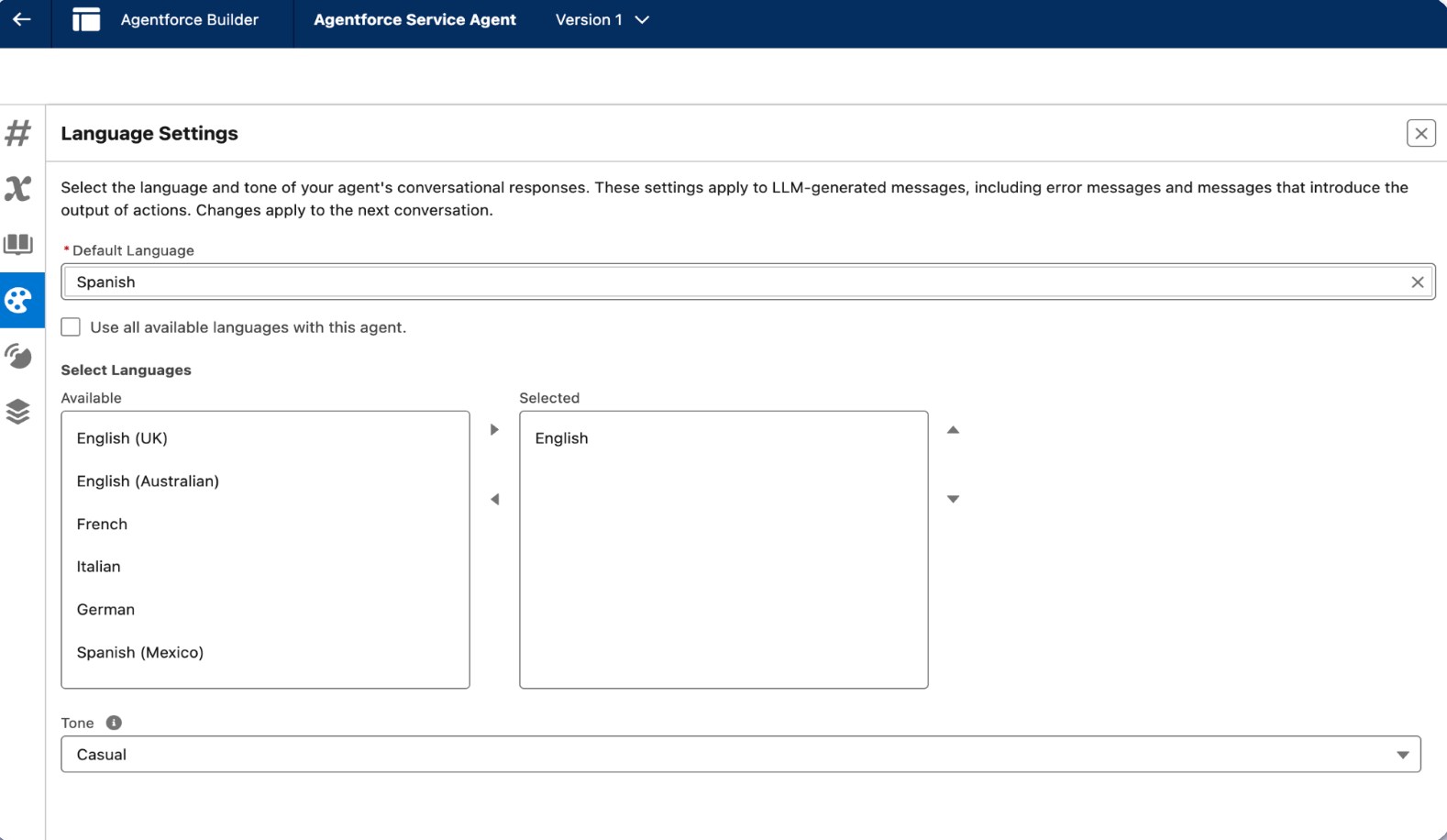
- Select your agent’s Default Language in Agentforce Builder Language Settings.
- Select your agent’s Secondary Languages in Agentforce Builder Language Settings.
- Together, your agent Default Language and agent’s Secondary Languages constitute the complete allowlist of languages that your agent can speak.
- Open Preview conditions and set the End User Language Variable.
- 4a. This is how you set this variable without MIAW or LEX client in the test environment.
- 4b. This determines the language that is passed on to any action output including Knowledge Action.
- 4c. This determines the language that is used for system message translation.
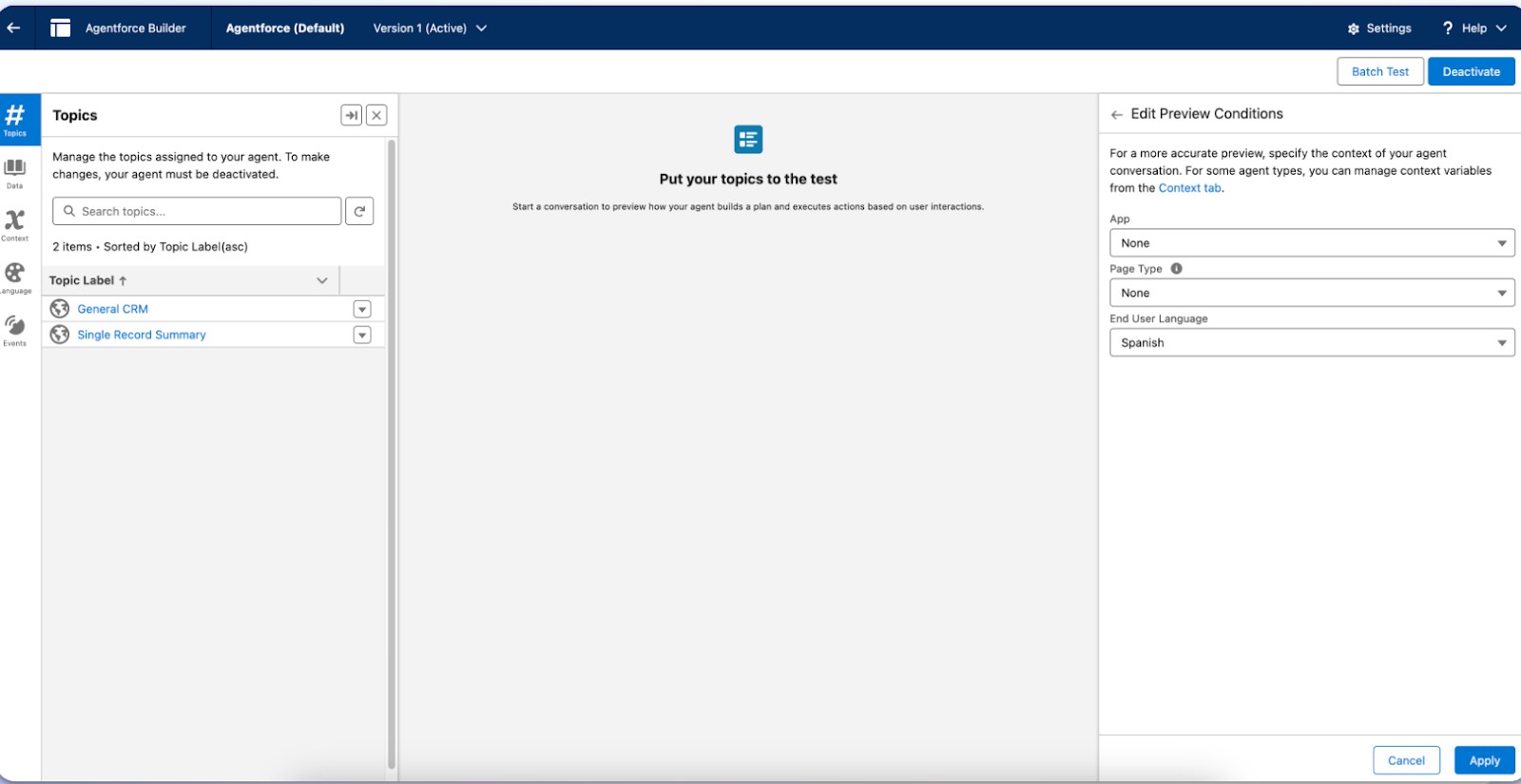
- Test your multilingual queries in the Preview panel to achieve the expected behavior in the sections above.
Knowledge Actions
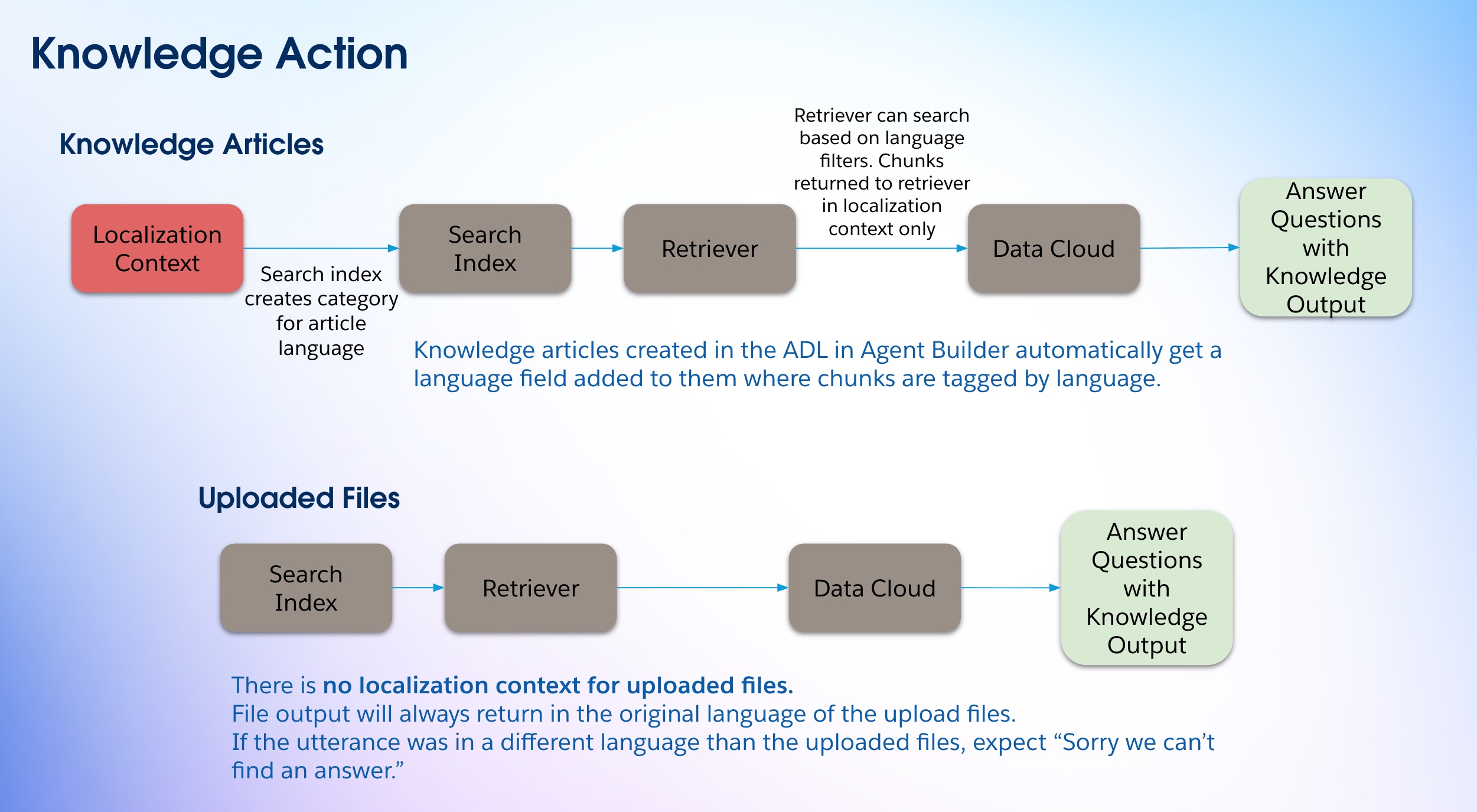
The system handles the Answer Questions with Knowledge action in a unique way:
- For Knowledge Actions, the Localization Context is used to filter knowledge articles.
- 1a. As a reminder, the Localization Context is set at Session Start from the End User Context Variable. At runtime, this comes from the MIAW Client (ASA) or Language & Time Zone Settings (AEA). In Agentforce Builder, this comes from the End User Language Context Variable set in Preview Conditions.
- Salesforce knowledge articles include a language field that allows users to specify the article’s language. The retriever searches based on language filters in the language context. The retriever filters out articles if the language context doesn’t match the Knowledge Article Language.
- 2a. To turn off language filtering, customers can create a custom retriever without the language filter.
- Notably, uploaded files do not have localization context. Their output will be in the original language, regardless of the user’s input language.
Action Loading Texts
Loading Text is a parameter on each agent action that indicates progress to your end-user or customer when an action is being performed.
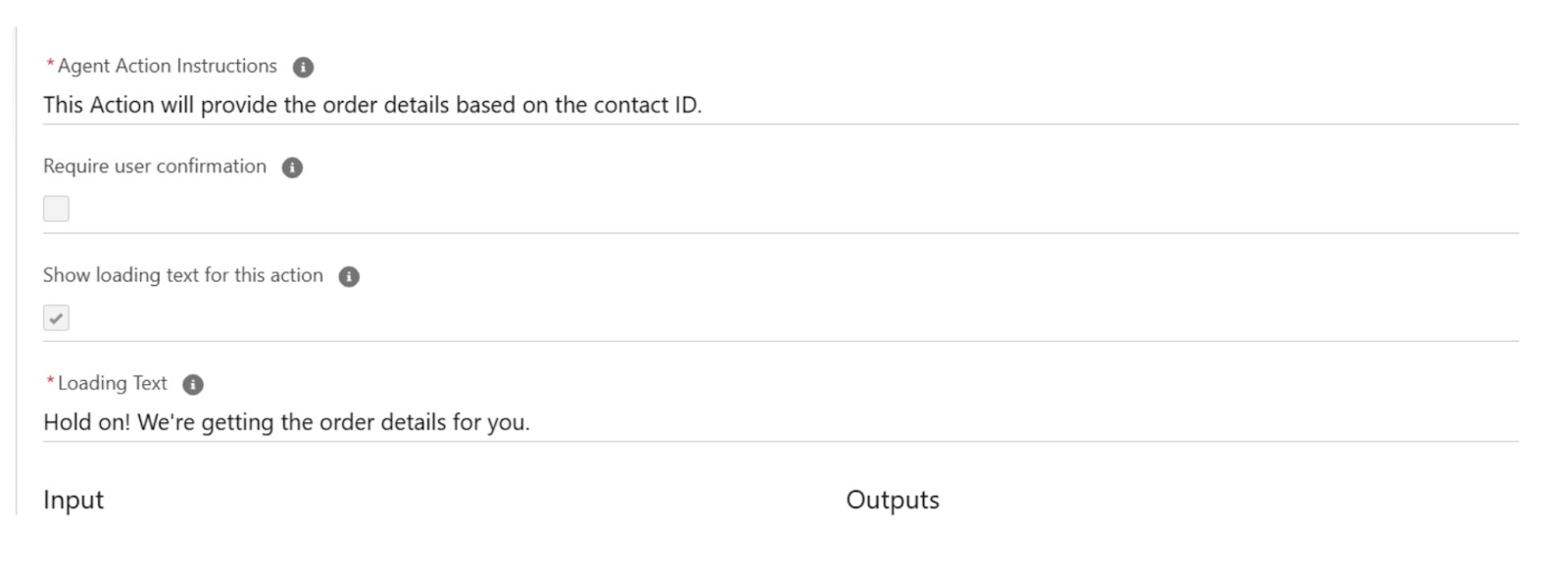
Using the Localization Context of the session, the Planner translates these configurable messages on the action during session runtime.
Custom Actions
Most standard actions pick up the correct language automatically. For example, prompt actions use the language context built into the prompt engine.
However, you must manually set up the language if your action uses an external service or a direct AI call.
Here’s what typically happens, depending on the action type.
- Most standard actions automatically use the Localization Context language from the Planner. For example, prompt actions automatically use the language context in the prompt engine.
- However, some actions require explicit handling of the language context. This is necessary if an action:
- 2a. Makes a direct internal call to the LLM gateway (e.g., Query Records).
- 2b. Relies on an external service.
- 2c. Includes functionality outside of standard Planner configuration.
- 2d. Does anything with language.
- Depending on the agent action type, you can consume the Localization Context variable from the Planner service by doing the following:
- 4a. Apex: For file-based standard Apex actions, action owners can use labels directly by calling the Salesforce Localization Context:
LC.getLabel("section", "label name"). This label could be returned directly in the InvocableActionResult or stored in the output variable to be displayed to the end-user. - 4b. Flow: Similar to file-based Apex classes, for file-based flow actions, action owners can use labels directly in the XML files by calling the Salesforce localization context.
- 4c. Standard actions calling prompt templates: For standard actions that call the prompt template service directly, action owners can pass in an outputParameter to the prompt template API, and set the locale themselves directly.
- 4a. Apex: For file-based standard Apex actions, action owners can use labels directly by calling the Salesforce Localization Context:
- Localization of Action Details: Action Titles and Descriptions also need to be localized. This involves converting the old “description” field to a new “einstein:description” field (used by the LLM) and providing a new customer-facing label for the “description” field. Salesforce labels should be provided for “title” and “description” properties to ensure they can be properly localized. The Planner can also dynamically translate tooltips for actions outside of Salesforce customer labels.
Agentforce’s language behavior is influenced by the combination of the End User Language context variable, the Agent’s configured languages, the performed action, and the data source. Achieving end-to-end multilingual support requires meeting certain conditions, including populating the End User Language context variable, localizing action titles and descriptions, ensuring localization context passing where needed, and testing.
II. Multilingual Architecture: How the LLM Processes Inputs in Various Languages
Agentforce’s multilingual support architecture is designed to handle language variations throughout the user interaction lifecycle, from session start to processing user utterances and action execution.
Language Funnel
The Agentforce architecture routes language as outlined below. Let’s examine each component.
- Agents: This represents the Agentforce AI agents.
- Agent configuration owners are responsible for configuring the Agent Default and Secondary languages in the Agentforce Builder. They also ensure the End User Language Context Variable is populated via the Agent client.
- The initial Agent Welcome Message, which tells the agent how to greet end users, originates from hardcoded System Messages.
- Agent Actions: Agent Actions represent the specific functions an Agent can perform.
- Action owners are responsible for localizing titles and descriptions.
- The action is responsible for consuming the Localization Context that’s set by Planner stored in Core metadata.
- Knowledge Action: This is a specific type of action focused on retrieving information.
- Knowledge articles created in Salesforce automatically have a language field added, and chunks are tagged by language as long as the articles were configured properly with the desired language support.
- The Retriever can search based on language filters using the language context. However, there is no language context for uploaded files; the output will be in the original language for the uploaded file.
- Planner: The Planner service is involved in the end-to-end language flow.
- It performs implicit language detection based on the user input.
- It creates a Localization Context at session start to influence the Action and subsequent Agent Response.
- Prompt Builder: The prompt template service automatically appends an instruction to generate the response in the current Salesforce user’s language context.
- Trust Layer: The Trust Layer supports a certain subset of Agentforce languages. See the help article titled Einstein Trust Layer Region and Language Support for additional information.
III. Language and Configurations: Enabling Multi-Language in Your Org and Agent
Let’s examine how the components and their configurations work.
MIAW Client
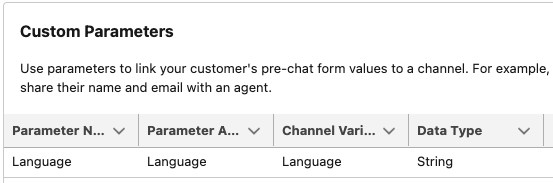
Messaging for In-App and Web (MIAW) uses pre-chat custom parameters to identify the end user’s language and send this information to Agentforce.
For more detailed information, check the Use Additional Languages in Agent Conversations help article.
LEX Client
When using the Lightning Experience (LEX) client, the Salesforce user’s language is used to define the language responses. If the Agent supports this language, the response will be in the end user’s language. Otherwise, the response will be in the agent’s default language.
Notice what happens when the user asks a question in Italian, which isn’t supported in the Agent language settings. The agent does respond in Italian, but only to notify the user of other supported languages they can use instead.
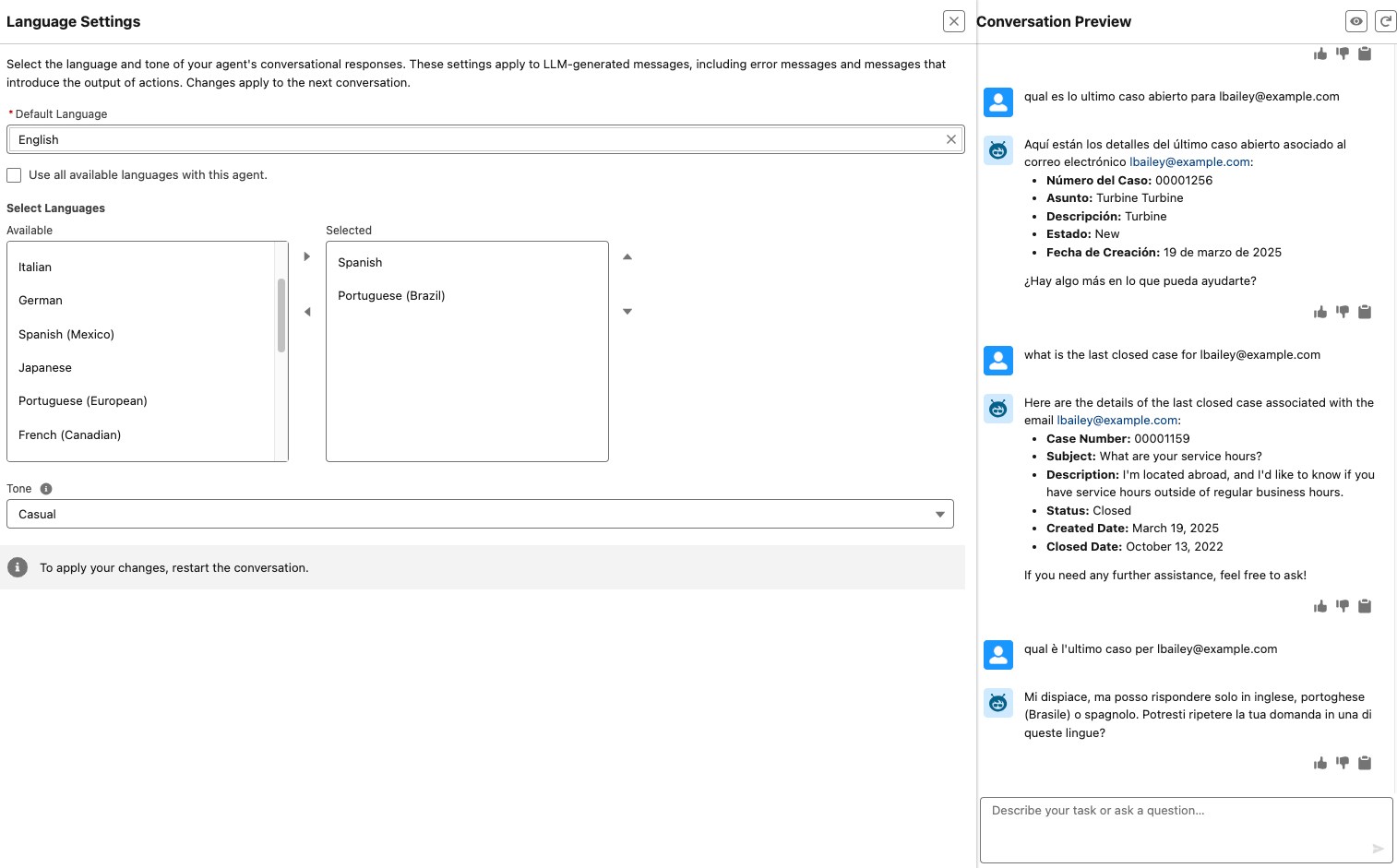
Again, this can vary depending on the type of agent. Agentforce (Default) may reply in the matching language, and Service Cloud Agent may specify supported languages as shown above.
Other Clients
Finally, let’s look at all the other clients using Salesforce Agent APIs.
With Agent APIs, when starting a session or sending messages to the agent, you can pass along variables including the end-user language as shown below:
{
   "message": {
     "type": "Text",
     "sequenceId": 1
   },
   "variables": [
     {
       "name": "$Context.EndUserLanguage",
       "type": "Text",
       "value": "en_US"
   },
   {
       "name": "$inUserEmail",
       "type": "Text",
       "value": "username@example.com"
     }
   ]
}
IV. Agentforce Supported Languages
Agentforce supports several different languages and locales, with more on the way.
Beta languages means customers can select these languages in Agentforce Builder, but are responsible for quality assurance. General Availability (GA) means Salesforce has verified the quality of responses across Agentforce.
Please review the supported languages for each agent by type:
Salesforce constantly updates and enhances their language support on a monthly basis, so check the help articles above for new updates.
V. Known Issues and Workarounds
Agentforce handles many languages well, but some tasks need a bit of extra setup. This section explores common issues and fixes for prompts, welcome messages, and special terms.
Language Adherence in Prompt Builder
Currently, it’s not possible to define language-specific policies in prompt templates. This poses a big issue for customers who often need to create language-specific guidelines to serve their multilingual use cases.
As a workaround, customers can call Localization Context language variables in their custom prompt templates. To do this, customers can call the GetAgentContext Apex action in a flow and then within that flow, call a prompt template where they pass on the Localization Context. Otherwise, they can create a custom Apex Class or flow that calls GetAgentContext, and reference it in their prompt template to get the Localization Context there.
Protect Key Terms from Translation
Note: Some tests have shown the following workaround successful at retaining untranslated terms, but outcomes may vary. It’s worth testing if you need to prevent a word from being translated by your agent.
To configure the LLM to retain a specific word across different target languages, use the following method <keep>WORD</keep>, as shown below:

Taxonomy and Glossary
As noted above, labels, titles, system messages, and loading texts are translated on the fly by the Planner service.
However, certain customers may need more control over term definitions or translatable versus not translatable words to match appropriateness for native language speakers or company branding.
Join the Agentblazer Community to see possible work-arounds for those scenarios.
System Messages
System messages are only translated literally under certain conditions. See the header, “Language Handling” above, and the subheader, “System Messaging.”
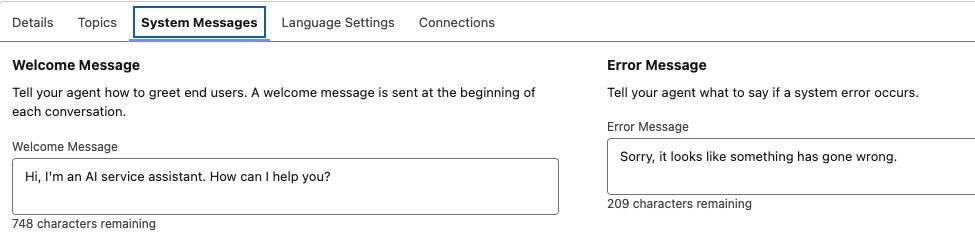
Dynamic Welcome Message
You can customize the translation of Welcome Messages using a specific configuration setting.
The Welcome Message is a <botMessage> in the metadata, so it supports Merge Fields with Context and System Variables, just like a regular bot message.
This opens the door to many possibilities.
Example: We can create a personalized Welcome Message, greeting the customer by their name and anticipating their needs.

Steps to create a dynamic Welcome Message
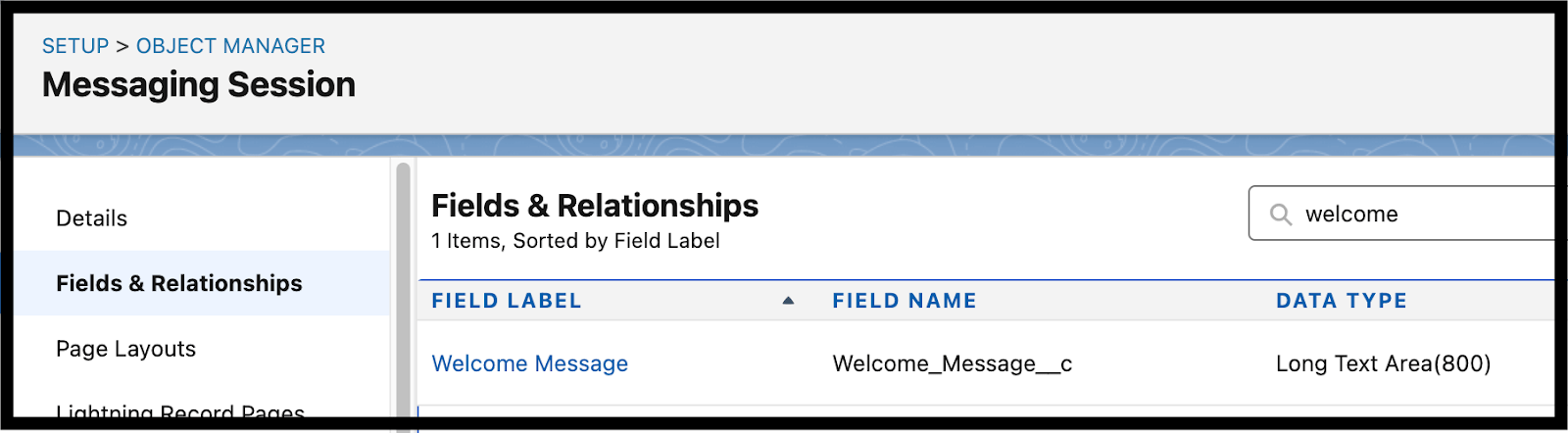
- Object Manager: Create a custom text Messaging Session field
- Setup → Object Manager → Messaging Session → Fields & Relationships → New
- Add a custom Long Text Area field to Messaging Session, which will store the dynamic Welcome Message
- Example:
- Label: Welcome Message
- API Name: Welcome_Message__c
- Type: Text Area Long(800)
- Recommended limit of 800 characters to match the character limit for the agent System Messages in Settings
- Agentforce Builder: Create/Map Context Variable
- Setup → Agents → open agent’s detail page → Open in Builder
- Deactivate
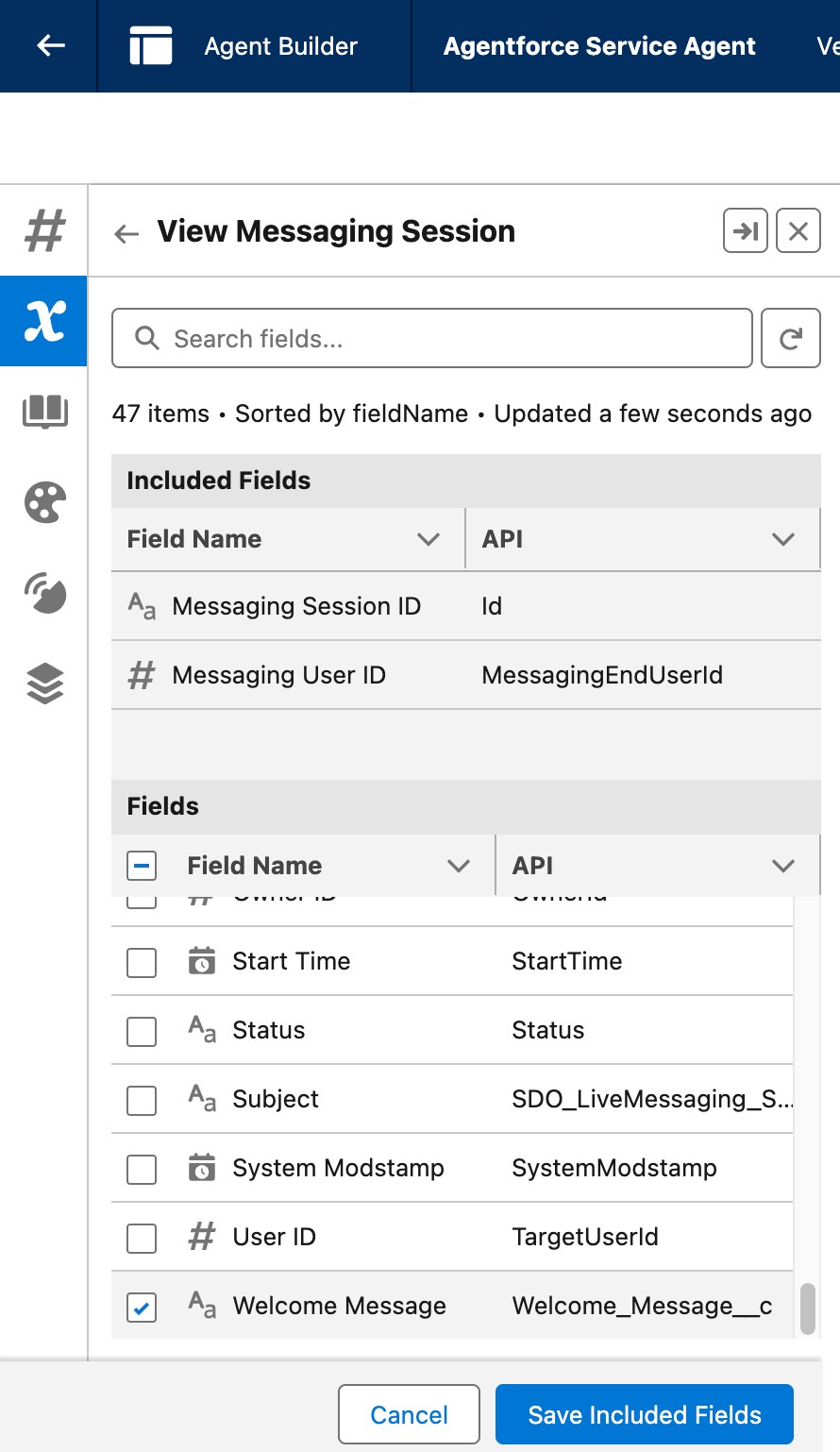
- Context → Variables → Context Variables → Messaging Session
- Edit Included Fields → Select Welcome Message → Save Included Fields
After saving it will automatically create a Context Variable with the same name as the custom field’s API name, but without the “__c” suffix typically present at the end of custom field API names. In this case, it’s expected and correct that the suffix is absent.
- Agent Details: Update the Welcome Message to use the new Context Variable
- Go back to the Agentforce details page in Setup
- System Messages → Welcome Message → put the name of the Context Variable using the merge fields syntax
Syntax: {!$Context.<CONTEXT_VARIABLE_NAME>}
Specific to this example: {!$Context.Welcome_Message}
Note: The API Name doesn’t include the “__c” suffix usually included for custom fields. In this case, the “missing” suffix is expected and correct.
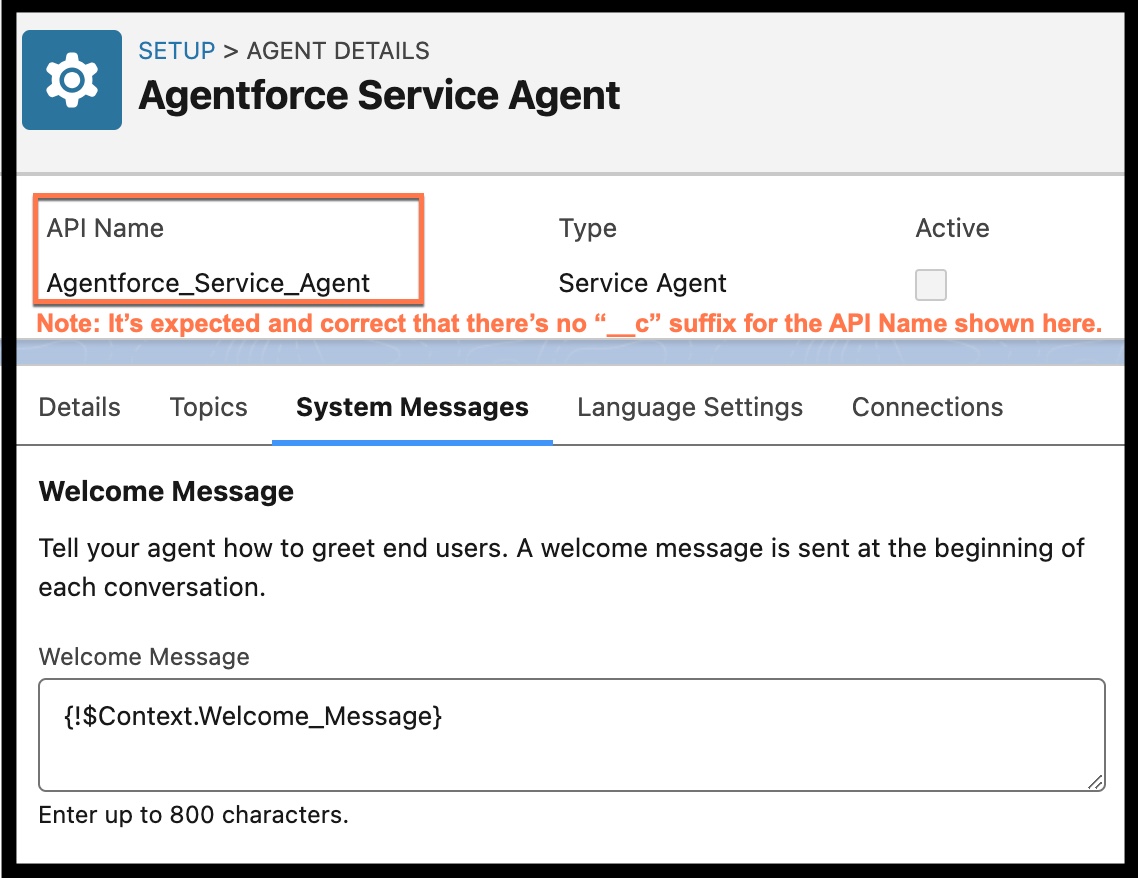
- Confirm you got the correct name and syntax
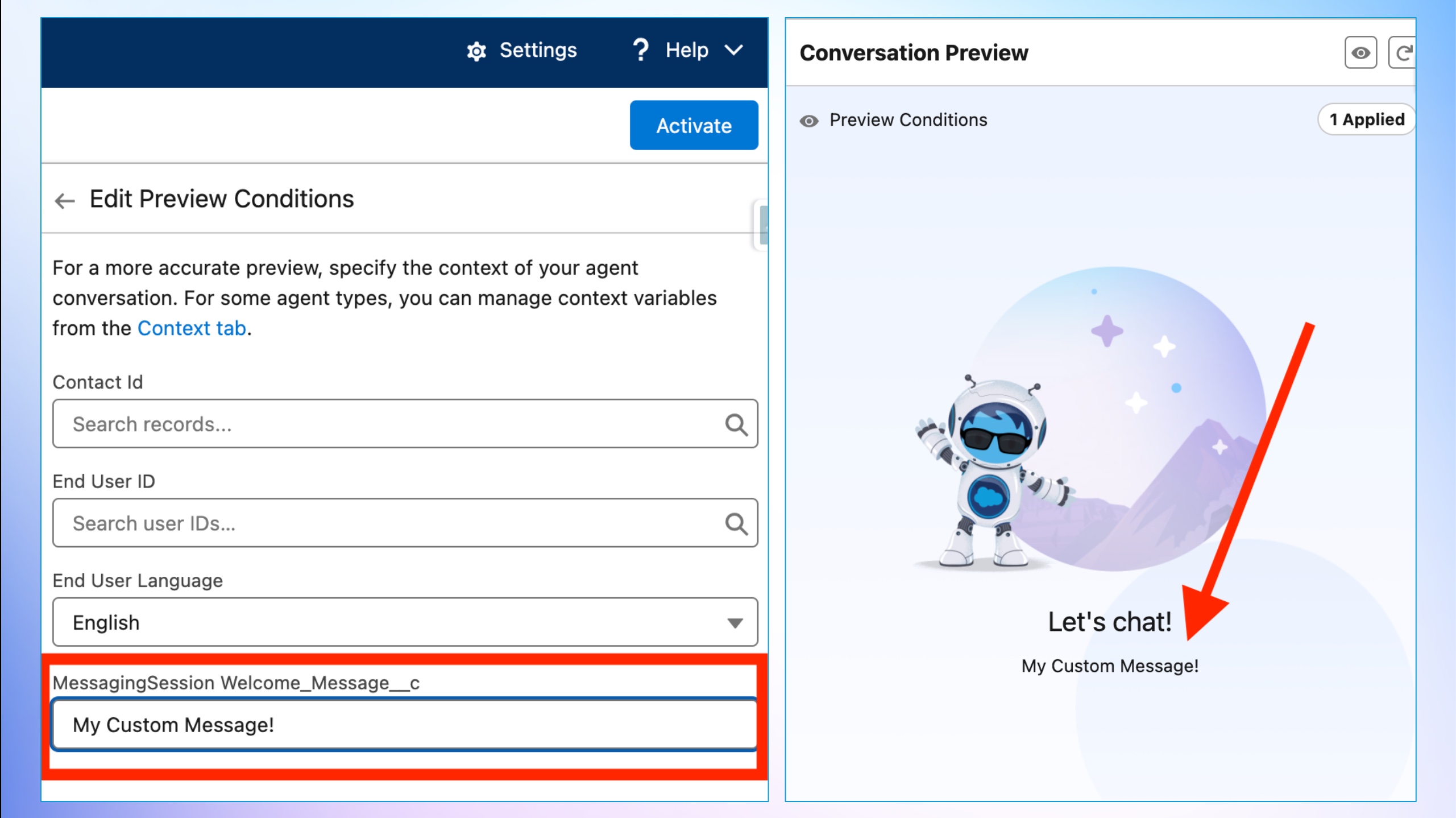
- Open in Builder → Edit Preview Conditions
- Put a message on MessagingSession Welcome_Message__c
- After saving, you should see your custom text under “Let’s Chat”
- Click Activate
Troubleshoot Context Variable API Name
If you still see the formula when previewing with a value and you’re sure you got the correct syntax, you can check on the metadata if the Context Variable was created with a different API name than expected
- VSCode → SFDX Local Project → Org Browser → Bots
- Download the metadata for the agent
- Check the file with the agent’s name (not the botVersion-meta.xml one)
- Searching for
<developerName>, you’ll find all context variables API names (the ones inside a <contextVariables> tag)
- Omni-Channel Flow: Generate the Welcome Message dynamically.
We’ll use the Omni-Channel routing flow to populate a generated welcome message in the Messaging Session record.
Note: Be extra careful with long-running operations, as Omni-Channel flows have very low timeouts. Avoid callouts in this process due to its complexity and latency.
- a. Create or Edit the Omni-Channel Flow routing from your digital channel to the Agent.
- b. Add or Edit the Get Messaging Session flow step. This step will retrieve the Messaging Session Record.
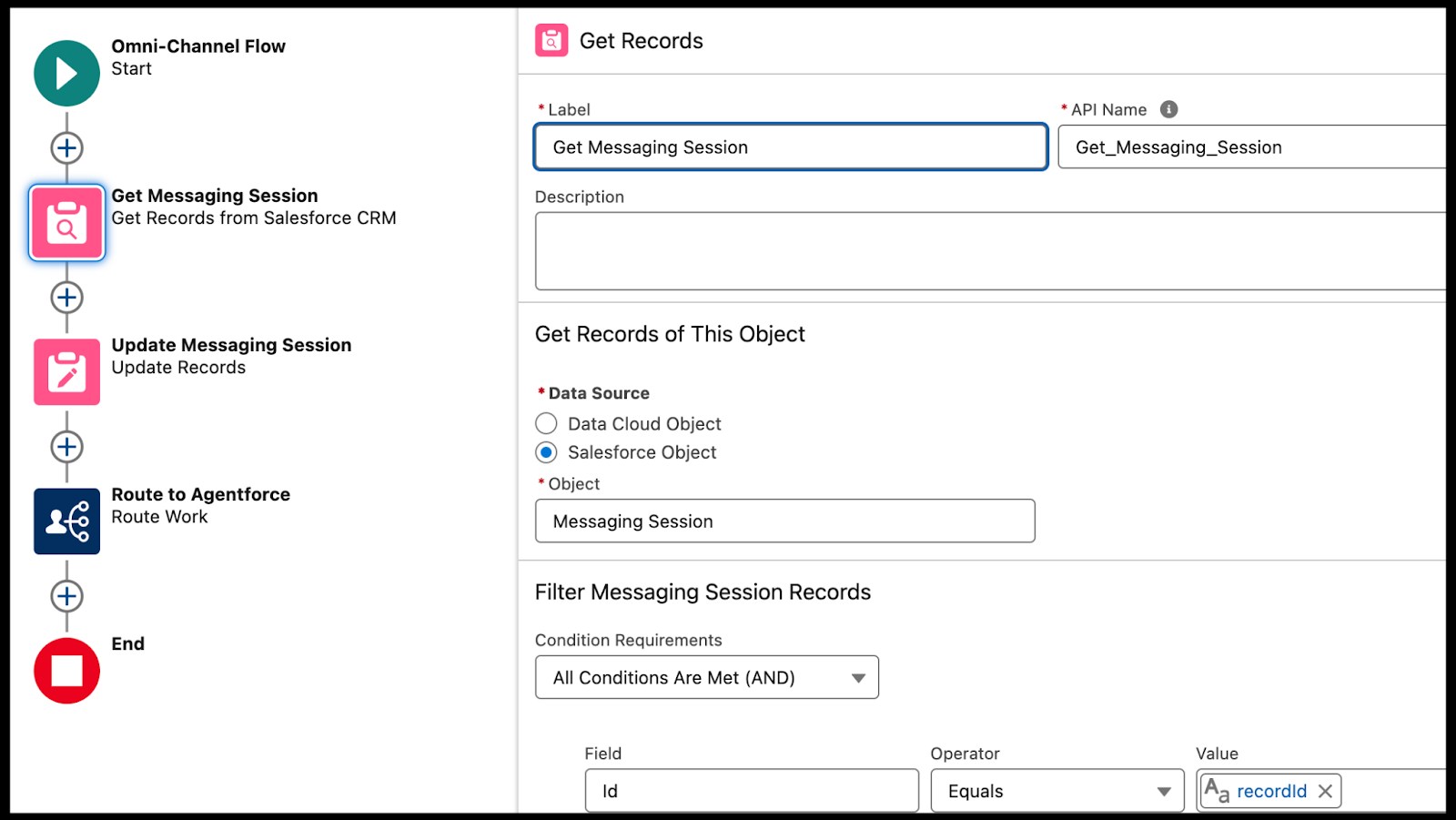
- c. Next, create a flow variable called “Text Template”, which will store the dynamically generated Welcome Message.
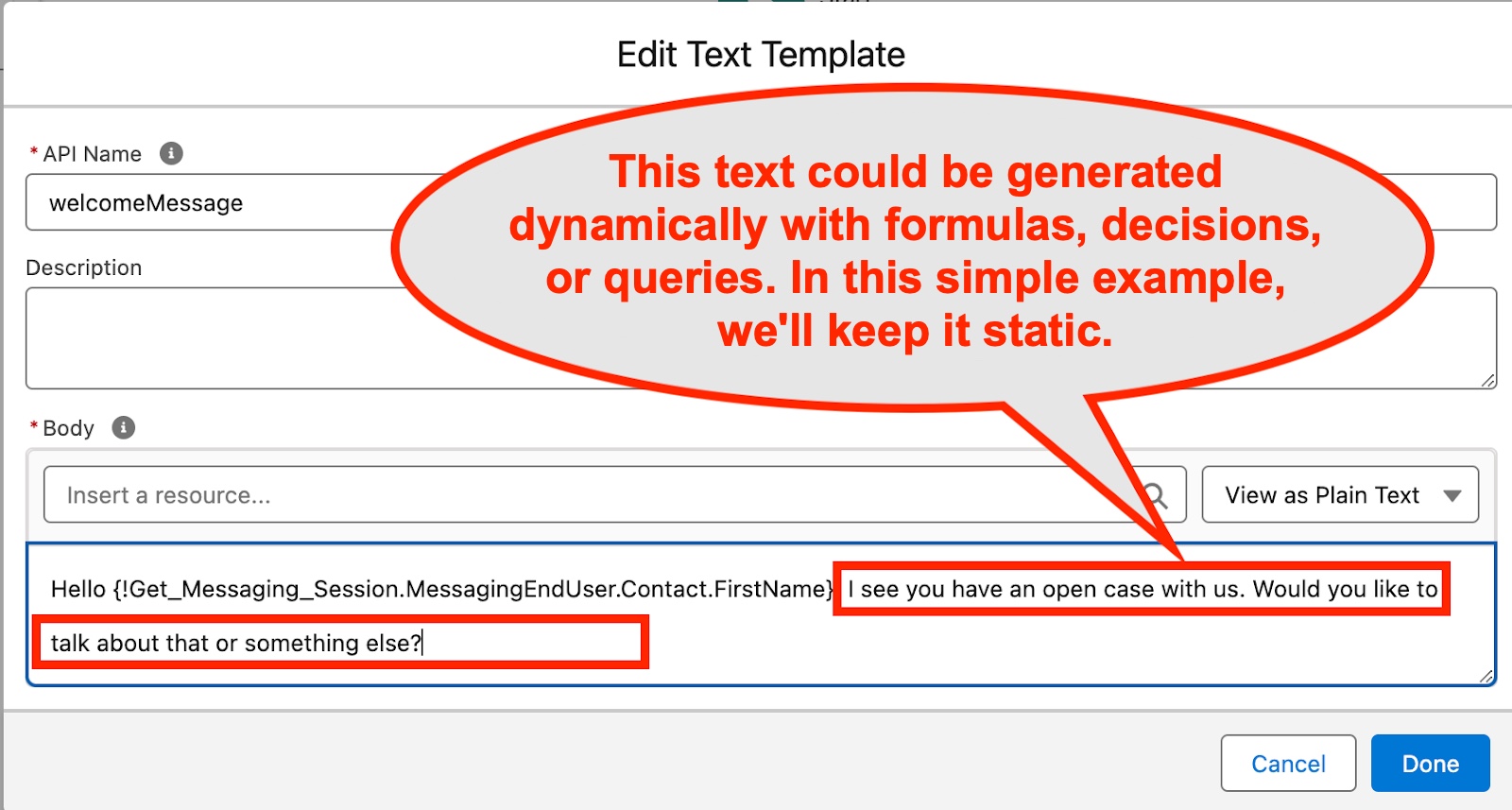
- d. In the next flow step, save text template value on the MessagingSession. Welcome_Message__c field.
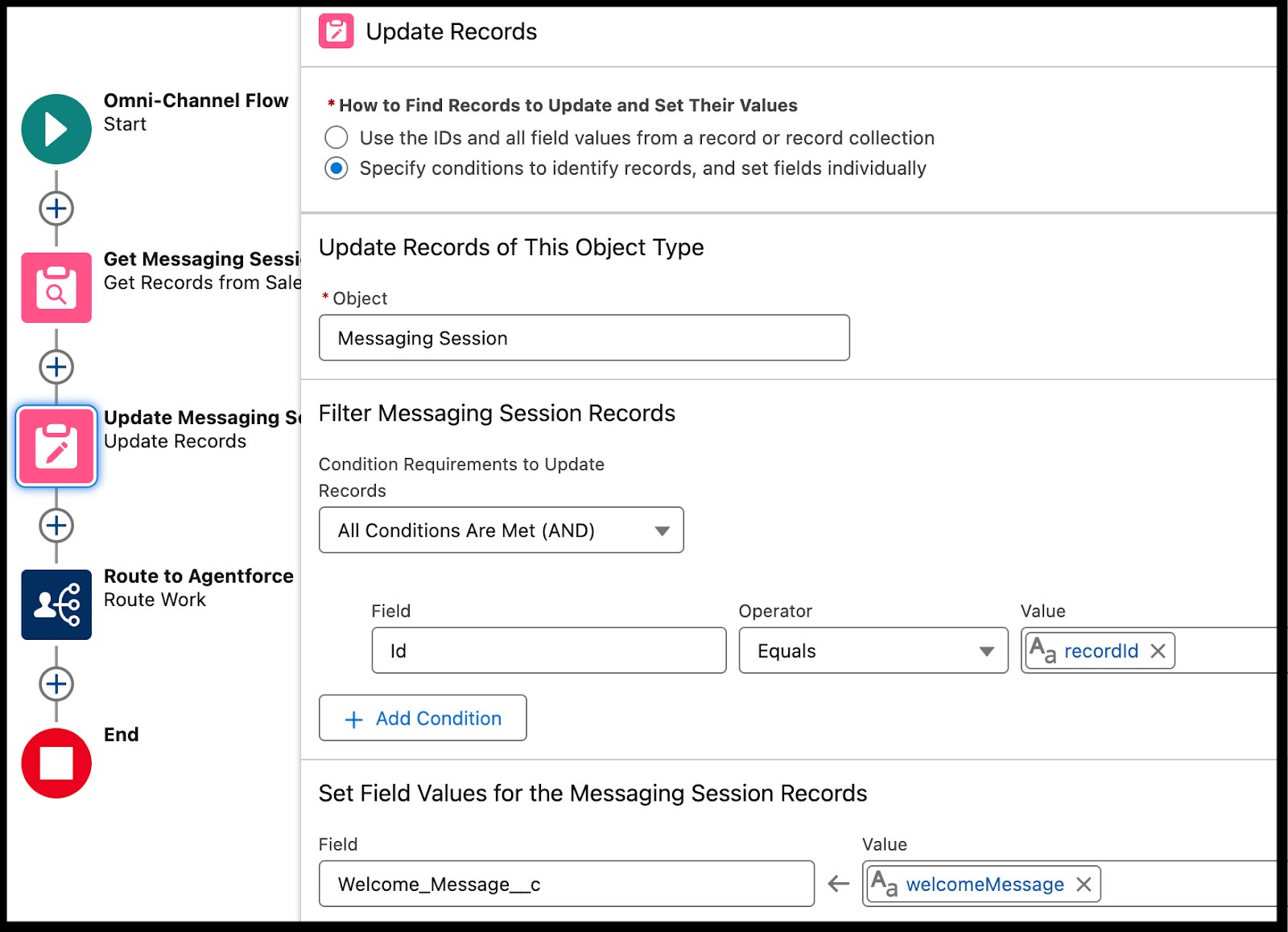
- e. In the next flow step, route the incoming chat to the Agentforce Agent.
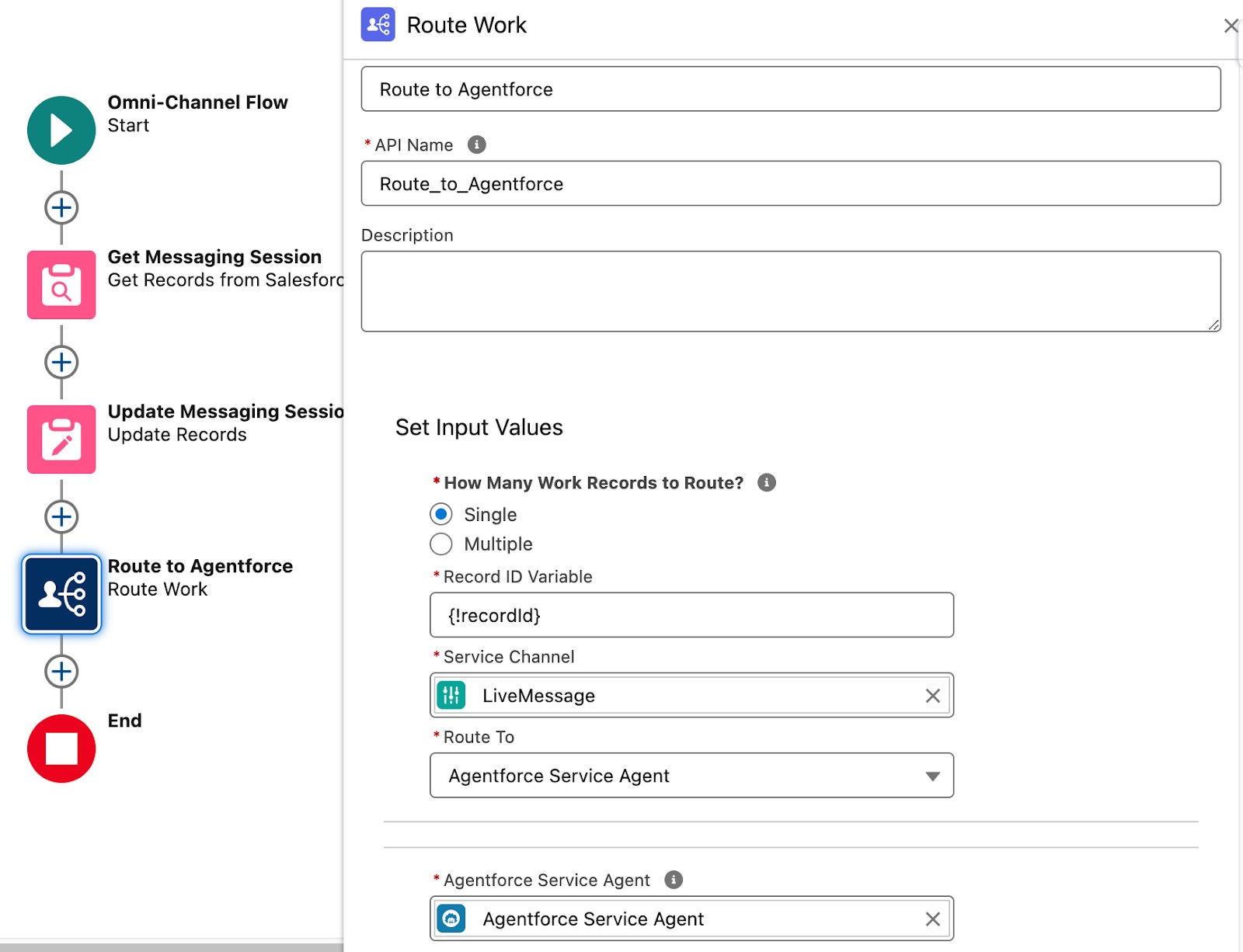
f. Finally, Save and Activate your Flow.
If you have more Agentforce questions, ideas, or creative solutions to share, join our Agentblazer Community.
Join the #Agentblazer Community
Explore use cases, ask questions, learn more about Agentforce, and interact with Agentblazers from around the world.



VI. Appendix: Terminology
Agent Default Language
This is the fallback language the system will use if there is no language detected when starting a session or if the “language set” is not supported by the Agent as configured in Agentforce Builder.
Agent Secondary Language
The set of supported languages the agent can interact in. Configured in Agentforce Builder. The default language and secondary language lists add together to create the total list of languages your agent can interact in.
End User Language
This is the context variable that helps control the Agent’s initial language. For Agentforce Employee Agents (AEA), the Lightning Experience (LEX) client populates the EndUserLanguage variable with the user’s language in the org settings. For Service Cloud Agents (ASA), the administrator has to set up a prechat field that populates the EndUserLanguage variable.
Prechat Language Field
This is a language variable administrators can configure in Messaging for in-app and Web (MIAW) that determines the user’s language preference in the Pre-Chat form.
Salesforce User’s Language Settings
The Salesforce user’s org settings language, configured from Profile → Settings → Language & Time Zone.
User Input Language
The language of the message a user sends at the beginning of a session with an Agent. This is not technically a variable but the identification of the user’s message language.
Planner Detected Language
The language of the customer’s input or message picked up by the Agentforce Planner Service during a session.
System Messages
Your agent’s welcome message and error message that are manually set by the Agentforce Builder in Agent Settings.
VII. Resources
Here are a few additional resources to help better understand the Agentforce Multi-language support.