


Slack-to-Salesforce integration is straightforward to set up. However, what sits underneath it requires architectural understanding and upfront design. Identity resolution and permission scope are design decisions that determine whether the integration is secure, maintainable, and ready for Agentforce.
This deep dive covers three integrations from the perspective of a Salesforce Architect: the default Salesforce org connection; deploying Agentforce agents in Slack; and Slackbot reaching into Salesforce through the default connection, Salesforce Model Context Protocol (MCP) servers, and Agentforce agents exposed as MCP tools.
Design your integration user before setup begins
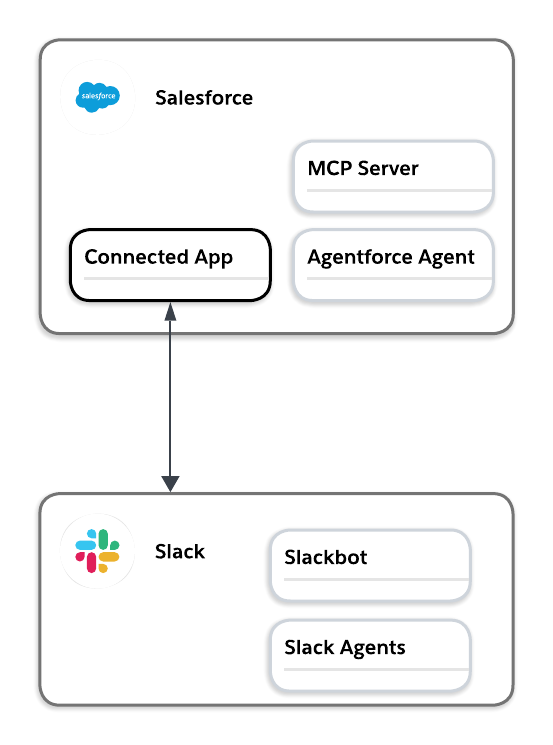
The base connection between Slack and Salesforce is initiated from the Slack admin side and approved on the Salesforce side. When the Salesforce admin approves the connection request in Setup, a connected app is provisioned in the org behind the scenes. This app enables the same OAuth patterns as any other inbound integration into Salesforce that controls which scopes the integration can request and under which identity it operates.
This is also where the integration user comes in. The integration user is the identity the connection runs under at the platform level. Its profile and permission set define the maximum scope available to the integration.
As an architect, you need to design the scope of access for the integration user. Start with an API Only user profile with no UI login capability, then build object access up based on the specific access required to make the integration work. Record-level access for functional data should be scoped on the individual users’ authorization rather than on the integration user.
When setting up the connection, you need to decide how Slack and Salesforce user identities are mapped by matching a unique identifier, for example, email or federation ID. Based on this mapping, Slack identifies the Salesforce user.
When end users authorize their own Slack-to-Salesforce connection, what they can access is constrained by the OAuth scopes defined on the connected app, and the individual user’s own Salesforce permissions. Whichever is more restrictive applies.
Decide on record channel and record preview settings for Slack users
In addition to the access managed by integration user scope and individual identity mapping, two Slack features need deliberate thought to ensure only intended data is displayed in Slack: record channels and record previews.
Think of record channel membership as separate from record data access
Record channels (called Salesforce channels in the Slack documentation) allow Slack users to view and update a Salesforce record from Slack. The default privacy setting for them is based on the object’s record access settings in Salesforce. If the object is set to public in Salesforce, the default will be Public, meaning that everyone in the workspace can find the channel. For all other org-wide defaults, access is set to limited.
For limited access channels, any user added to the channel can see and interact with messages about the record, but can only view and update the record itself if their Salesforce user permissions allow it. See Slack’s security documentation for Salesforce channels for more details.
The channel name is a separate consideration: if this is set to the record name, anyone who can find or join the channel, or is added to it, sees that name, with no permission check at all. Don’t default to naming the channel after the record if the name itself is sensitive independent of the record data, for example, if customer identity or deal information is included in the record name.
Understand that record previews are scoped by the sharing user
Record previews show a snapshot of the record in messages that reference a Salesforce URL that points to a Salesforce record.
A key consideration for record previews is that they reflect the details of the record when it was shared and are generated using the Salesforce permissions of the person who shared it. When a record preview is created using an admin-created custom notification, the details are generated using the Salesforce permissions of your Salesforce integration user.
Most Salesforce architects assume preview exposure is bounded by the viewer’s own access. Because the preview reflects whoever generated it, not whoever is viewing it, the real exposure for any object is what the most broadly-permissioned person or integration user who might share that record can see.
It is now possible for a Salesforce admin to define a specific record layout for Slack unfurls to determine which fields are displayed. If no Slack record layout exists, the fields displayed will default to the compact layout.
Before enabling previews for an object, identify fields that are permitted to be seen by anyone in Slack based on the integration user and the most broadly-permissioned person who could share it. Then scope the Slack record layout to what is acceptable at that level. Regardless of whether previews are enabled, they do not appear in channels with external people.
Expose Agentforce agents in Slack
With the base connection between Slack and Salesforce in place, the next step is to consider how to expose Agentforce agents in Slack.
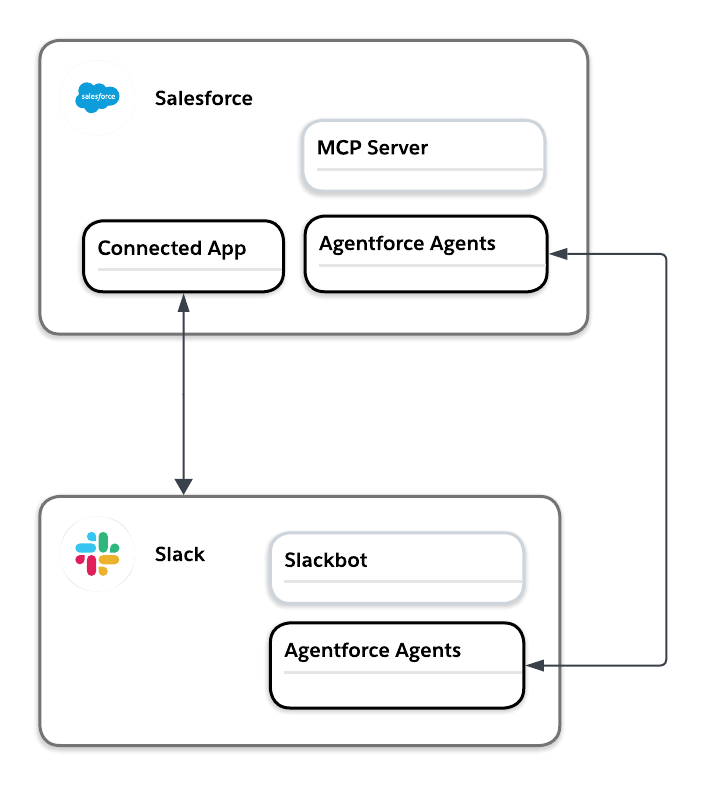
At a high level, getting an Agentforce agent into Slack follows a specific sequence:
- Build and activate the agent in Salesforce.
- Add a Slack connection to the agent in Agent Builder. The Slack connected app provisioned during the base connection setup is shared at the org level, and the user mapping defined is applicable here as well, but on top of that, each agent uses its own explicit connected app connection.
- Install the agent into the relevant workspaces.
Once installed, these agents operate in Slack as specialized agents, distinct from Slackbot.
Understand agent types Slack supports
Service Agents are not supported in Slack. If you already have a Service Agent built for this purpose, exposing it in Slack means building an Employee Agent against the same use case rather than reusing the Service Agent directly, since the identity models aren’t interchangeable.
Service Agents run as a dedicated Agent User in the Salesforce org where they live regardless of who invokes them. They have a dedicated system user per agent with its own profile and permission sets. This user’s scope determines the identity and access the agent acts under when it retrieves data, updates records, or triggers flows in Salesforce.
The Agentforce agents that should be exposed in Slack are Employee Agents. These agents identify the invoking user at runtime and act on that user’s behalf, following that user’s own Salesforce permissions and sharing model. Once these Agentforce agents operate in Slack, user access mirrors Salesforce permission set assignments automatically, with no additional Slack-side configuration required per user.
In Slack, that runtime identification depends entirely on the Slack-to-Salesforce identity mapping established in the base connection. Even when it is called from outside of Salesforce, the Employee Agent needs to know who is asking in order to act as them, and the only way it knows that in Slack is through that mapped identity.
How end users get access
To be able to use Agentforce agents in Slack, users need access to the agent assigned through permission set assignment in the Salesforce org. Without it, the agent is invisible to that user regardless of which surface they are on. Once the agent is installed in Slack, any user with the right permission set in Salesforce can find and invoke the agent in Slack with no additional configuration required on the Slack side.
Connect Salesforce and Slackbot
With base connection and record access decisions covered, and Agentforce agents now reachable directly by end users in Slack, the next consideration is how Slackbot reaches Salesforce data and agents. Two separate decisions sit ahead: how Slackbot accesses Salesforce records, and how it interacts with Agentforce agents.
Use standard Salesforce data access for Slackbot
Slackbot can find, create, and update Salesforce records natively through the base connection, conversationally. That access is scoped by the same connected app integration and identity mapping established earlier in this post: Slackbot only acts on records a given user already has permission to view or edit in Salesforce.
That also means Slackbot cannot be restricted to less than the user’s own permissions through this mechanism. To cap Slackbot’s access beneath an individual user’s own permissions, you can connect it to Salesforce data through the Salesforce MCP servers instead.
Connect Slackbot to the Salesforce MCP servers to scope functionality and access
Slack can connect Slackbot to a set of standard Salesforce MCP servers, through Slack’s admin settings. The MCP servers themselves are scoped to their specific operations:
| MCP Server | Scope |
| SObject Reads | Search and retrieval |
| SObject Mutations | Create and update |
| SObject Deletes | Delete actions |
| SObject All | Full CRUD |
| Data 360 | SQL queries across Data 360 sources |
In addition, developers in your Salesforce org can build custom MCP servers to give Slackbot access to additional tools via Apex actions, Lightning flows, Apex REST endpoints, APIs from the API Catalog, Prompt Builder templates, and Agentforce agents.
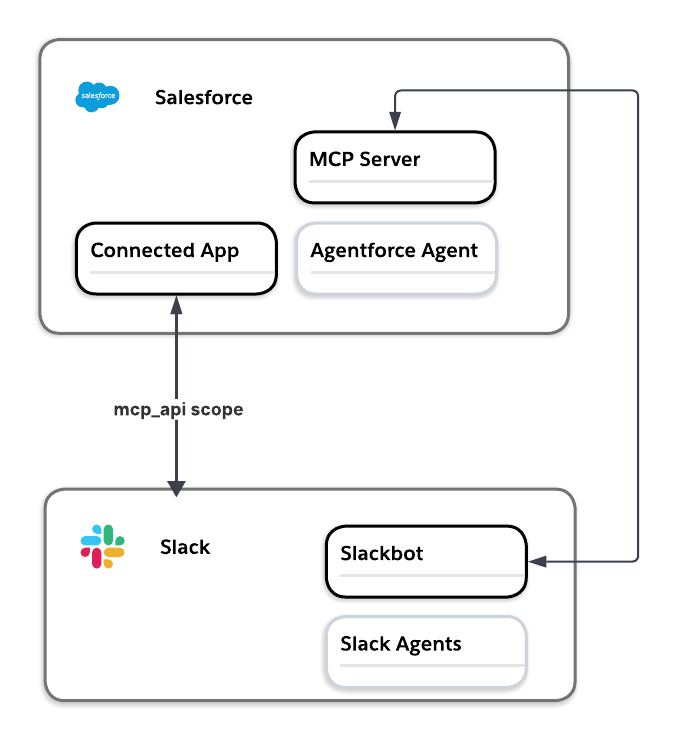
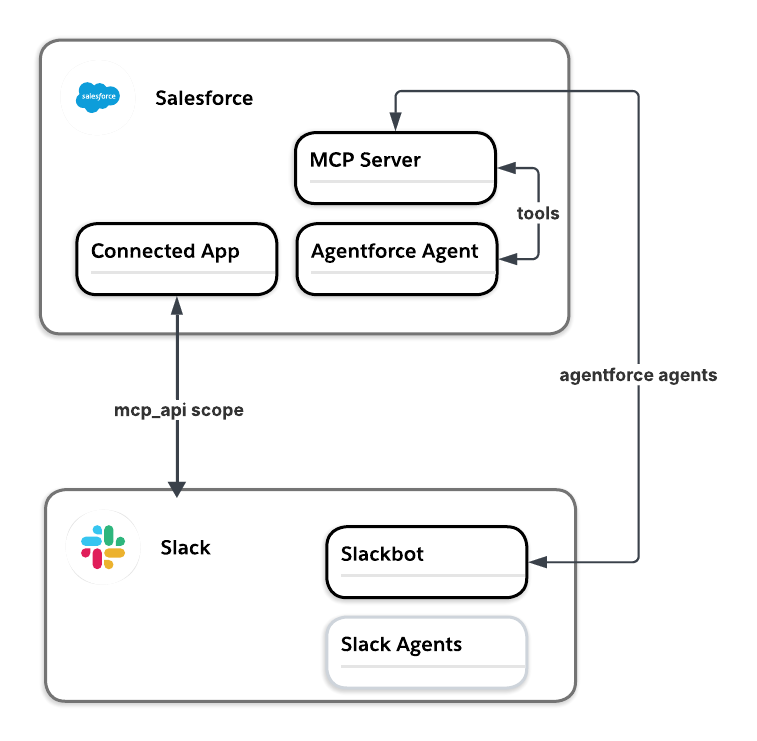
The connection is secured in the same way, by adding the mcp_api scope to the connected app. This way, each of the MCP server connections enforces per-user authentication beneath whatever ceiling they define, applying field-level security, object permissions, and sharing rules to every action, through the same identity mapping established at the base connection. A user who hasn’t been mapped is prompted to authenticate before the MCP server can act on their behalf.
A current setup constraint is that these MCP servers can’t connect if the org has IP address restrictions defined.
Expose Agentforce Agents as MCP tools for Slackbot
The two Salesforce data access mechanisms covered above give Slackbot record-level access to search, create, update, and delete (scoped by the end user’s permission or the MCP server). That’s the right design direction when Slackbot just needs data access and is doing its own reasoning on top of it.
But your org likely already has Agentforce agents that encapsulate additional reasoning. Exposing these as MCP tools lets Slackbot delegate to those specialized agents directly instead of rebuilding logic and reasoning inside Slackbot.
You configure this in Setup rather than through Agent Builder. For each tool, you select the Agentforce agent you want to expose, then name and describe the tool before publishing. Only agents built with the new Agent Script Builder are eligible. Legacy agents have to be upgraded before they can be exposed this way.
Slack as your agentic surface
Understand the architectural case for Slack as the primary surface for agentic work, and what that means for how you design systems that agents discover and act on.



Design the integration before configuring anything
The three integrations covered in this post look like separate configuration tasks but they share similar design considerations, have dependencies, and often inherit from decisions made earlier. The permission scope and authentication behavior defined in the base connection flow through each integration discussed.
These dependencies involve architectural decisions that have to be made deliberately, in sequence, before any layer is configured. The architect’s job here is to design solutions that work end to end, and document the decisions and their rationale, before implementation.
Where to go from here
- Read Architect the Future UI: Slack as Your Agentic Surface for the strategic case for Slack as the primary agentic surface and what that means for how you design systems going forward.
- Review the Salesforce Well-Architected Framework Trusted solutions guidance for the security and trust principles that underpin the decisions in this post.