

When was the last time your team had a breakthrough? A moment where ideas came together and something new took shape? For a lot of growing teams, those moments used to happen at whiteboards covered in marker and sticky notes. But today’s teams are spread across cities, time zones, and kitchen tables.
Virtual whiteboarding in Slack is making it possible to recreate that energy online, all over the world. In this post, you’ll learn how to use Slack’s built-in features to run brainstorming sessions that actually build inspiring ideas.
Why virtual whiteboarding in Slack works for small teams
A virtual whiteboard session, or digital brainstorming, is a great way to get everyone together on a project. When you’re running a small and medium business (SMB) with a lean team, you can’t afford to lose momentum between idea and execution.
73% of SMB leaders believe their tech investments help them keep up with — or outpace — competitors, according to the latest Small and Medium Business Trends Report. Virtual whiteboarding with Slack puts your brainstorming, your files, your integrations, and your follow-through in one place, so nothing slips between the cracks.
Here are some Slack features included in a virtual whiteboarding session:
- Slack channels: Provide a dedicated, searchable home for brainstorming sessions and project discussions.
- Slack canvas: A persistent, shared document used to capture, organize, and format ideas in real-time alongside channel conversations.
- Huddles: Facilitate real-time, live discussions while working within a Canvas.
- Slack connect: Allow for collaboration with external partners, vendors, or freelancers within shared channels.
- AI in Slack: Summarize long brainstorming conversations, surface key ideas, and help draft follow-up messages.
- Workflow builder: Automate post-brainstorming tasks, such as assigning action items or triggering reminders.
- AI CRM integration: Integrated business tools and an AI teammate to summarize sessions, suggest next steps, and manage project follow-through.
Setting up a dedicated brainstorming channel
The first step in running great a virtual brainstorming session is giving it a home. In Slack, you can create a dedicated channel for any project, team, or recurring idea session — and make it public or private depending on who needs access.
Channels create a searchable, living record of every idea your team shares — so even if someone joins the conversation a week later, they can get caught up instantly. Name your channels consistently (like #brainstorm-campaign or #marketing-promos) so the whole team can find them easily.
Use channel descriptions and bookmarks to set the stage
Before your session begins, add a short channel description and pin any relevant briefs, docs, or prompts as bookmarks. This gives everyone the context they need before the ideas start flying, and it keeps the channel organized as the conversation grows.
Here are some tips for setting up channel descriptions and permissions:
- Keep descriptions concise: Clearly state the channel’s purpose, key stakeholders, and any relevant project deadlines.
- Use bookmarks for easy access: Link essential documents, project briefs, or recurring meeting links as channel bookmarks so they’re always visible to members.
- Define clear permissions: Set channels to private for sensitive projects to limit access, or public to encourage transparency and cross-team visibility.
- Regular maintenance: Update descriptions when project scope or focus changes to ensure new members have accurate context immediately upon joining.
Slack is where business gets done.
Bring your team, your customers, and your tools together to take your business to the next level with Slack — where business gets done.

How to use Slack canvas as your virtual whiteboard
Slack canvas is one of the most powerful tools for virtual whiteboarding — and it’s built right into every channel and direct message. Think of it as a persistent, shared document that lives alongside your channel conversation. Your team can use it to capture ideas in real time, organize them into themes, add links and images, and embed no-code workflows — all without switching apps.
Run a live brainstorm with Canvas and huddles
Here’s a setup that works well for SMBs: Open a huddle in your brainstorming channel and pull up the channel canvas at the same time. As your team talks through ideas in the huddle, one person (or everyone, in real time) types them directly into the canvas. You end up with a live, editable record of the session that everyone can see, add to, and reference later — no post-meeting scramble to reconstruct what was said.
Organize ideas with headers, bullets, and checklists
Canvas supports rich formatting, which means you can quickly sort raw ideas into categories, rank them by priority, or turn the best ones into action items with checkboxes. Instead of a whiteboard that gets erased, you’ve got a document that persists, updates, and scales with your team.
And, here are some tips for running a canvas for whiteboard:
- Start with an agenda: Use a header to clearly define the session’s goal and keep the discussion focused.
- Assign roles: Use @mentions to designate a facilitator and a primary note-taker.
- Use rich formatting: Utilize headers, bullet points, and checkboxes to structure ideas as they are shared.
- Embed resources: Add links to relevant project briefs, files, or external documents directly in the canvas for easy access.
- Define action items: Convert key takeaways into a checklist to easily assign owners and deadlines after the session.
Get Salesforce free for 30 days.
No credit card required, no software to install.

Bringing the whole team into the conversation
Great brainstorming isn’t just about the loudest voices in the room — it’s about giving everyone a structured way to contribute. The Slack connect feature lets you bring in partners, vendors, or external collaborators directly into a shared channel, so your brainstorm can include everyone who matters — not just people on your payroll. This is especially useful for startups that work with freelancers, agencies, or co-founders across organizations.
Use emoji reactions and threads to prioritize ideas
During async brainstorms — where not everyone is online at the same time — emoji reactions are a fast, low-friction way to vote on ideas. Ask your team to react with a thumbsup 👍 for ideas they like, or use a custom emoji to signal their top pick. Then use threads to go deeper on the most popular ones, keeping the main channel clean and focused.
Pro tip: To make a custom emoji, just click on “Add reaction” to a post, then click “Add Emoji” which will prompt you to upload an image and name it. This is great for personalized team celebrations.





Using AI to accelerate your brainstorming sessions
Artificial intelligence (AI) is changing what’s possible for small teams with big ambitions — and Slack is where that AI shows up at work. Slack’s AI features can summarize long channel conversations so you can catch up fast, surface the most important ideas from a brainstorm thread, and help you draft follow-up messages or next steps.
Here are some of Slack’s AI features:
- Conversation summaries: Quickly catch up on long brainstorming threads without reading every message.
- Search answers: Get instant, AI-powered answers to your questions from across your organization’s Slack history.
- AI-powered drafting: Draft follow-up messages, action items, or project summaries with ease.
Customer story: CloudFit
CloudFit, an AI-driven wellness startup, built their entire operation around Slack as the “spine” of their team. By centralizing their communication and customer relationship management (CRM) data in Salesforce and Slack, they cut product and engineering onboarding to just 30 minutes and started tracking customer engagement 5x faster.
“Slack is really the spine of our team,” said CEO and Co-Founder Kristian Phillips. For a fast-moving startup, having a single place to brainstorm, collaborate, and act on customer data made all the difference. Read the full story here: CloudFit’s AI-Driven Wellness Meets Human Touch with Salesforce + Slack.
Turning ideas into action with workflows and integrations
The real magic of virtual whiteboarding in Slack isn’t just capturing ideas — it’s what happens after. Slack’s workflow builder lets you automate follow-up steps right inside a channel: assign owners to action items, set reminders, or trigger notifications when something in a Canvas changes. You can also connect your favorite project management, marketing, and sales apps directly to Slack through the Slack Marketplace, so your brainstorm outcomes flow directly into the tools your team already uses.
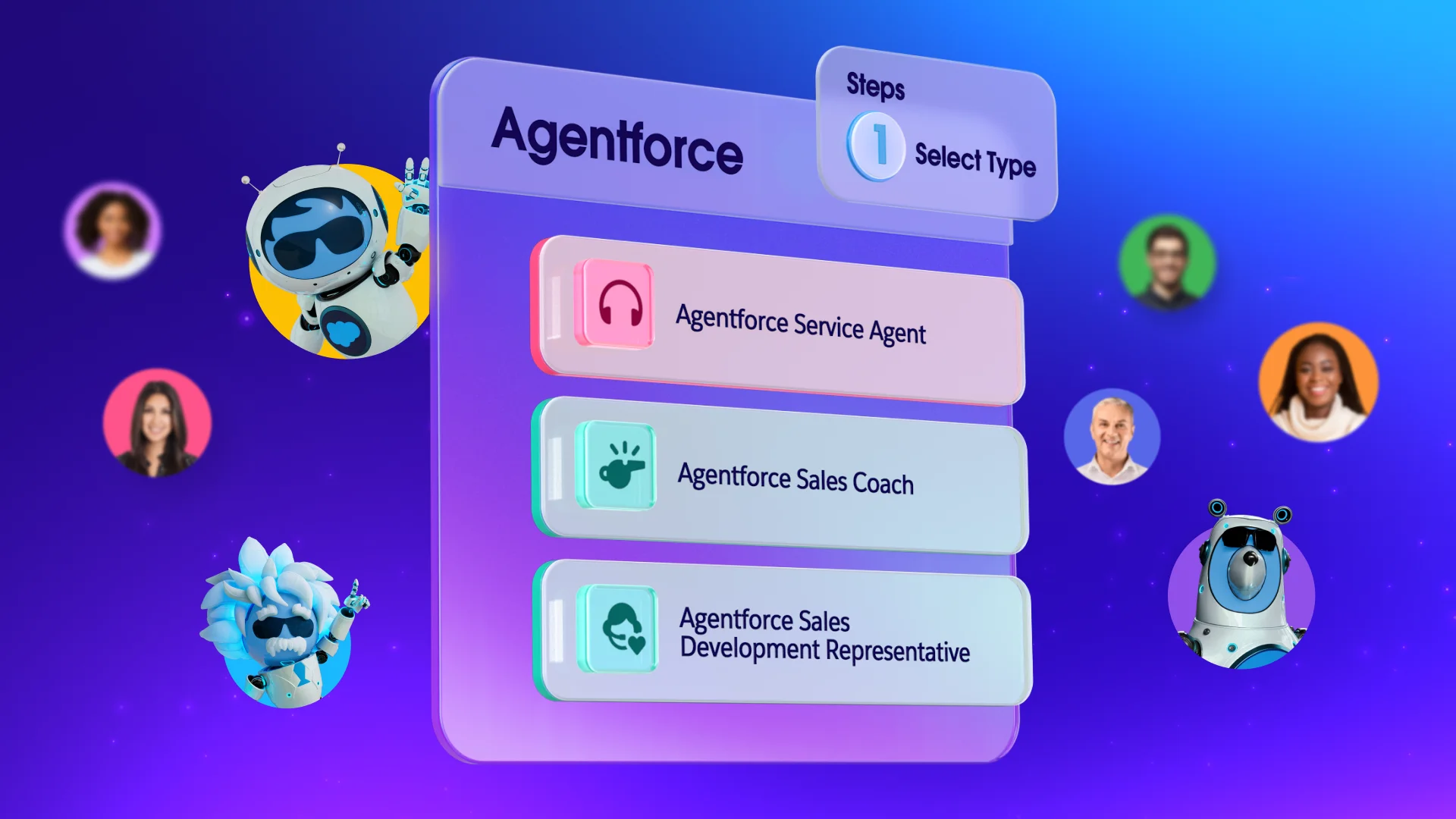
As your team grows, Agentforce takes this even further — acting as an AI teammate that can summarize brainstorm sessions, suggest next steps, and help you manage follow-through across your entire business, right in Slack. Agentforce is built to work alongside your team, not instead of it.
Wow em’ with whiteboarding sessions in Slack
You don’t need a giant conference room or an expensive whiteboard app to run creative, productive brainstorming sessions. With Slack’s channels, canvas, huddles, and AI-powered tools, your team has everything it needs to capture ideas, stay aligned, and move fast — whether you’re all in the same building or spread across the globe.
Get started with Salesforce for free or activate Foundations to try out Agentforce today.
AI supported the writers and editors who created this article.
What is virtual whiteboarding in Slack?
Virtual whiteboarding in Slack refers to using Slack’s built-in features — like Canvas, channels, huddles, and reactions — to run collaborative brainstorming sessions online. It replicates the creative energy of in-person whiteboard sessions without requiring a separate app or tool.
How does Slack canvas work for brainstorming?
Slack canvas is a shared document that lives inside any channel or direct message. During a brainstorm, your team can add ideas, organize them into themes, check off action items, and embed workflows — all in real time.
Can I use Slack for async brainstorming with a remote team?
Absolutely. Slack is designed for both real-time and asynchronous collaboration. You can use canvas to post prompts and invite team members to add ideas on their own schedule, then use emoji reactions and threads to prioritize and discuss the best ones when everyone’s ready.
How can I involve external partners in a Slack brainstorm?
Slack Connect lets you invite people outside your organization — like vendors, freelancers, or agency partners — into a shared channel. You can control what they see and give them the ability to contribute directly to your brainstorm without ever leaving Slack.
What’s the difference between online team brainstorming tools and Slack?
Most standalone brainstorming tools are single-purpose — they capture ideas but don’t connect to your actual workflow. Slack combines real-time brainstorming with channels, files, integrations, and AI-powered follow-through, making it a complete collaboration hub for small and growing businesses.