




In Q4 of last year, Agentforce customers consumed more than 20 trillion tokens — a staggering 400% increase year over year. To put that in terms of actual work, Agentblazers clocked in 1.79 billion agentic work units (AWUs) in Q4. It wasn’t just sheer volume, either. Organizations are getting more sophisticated in their agentic deployments, from tool calling capabilities, to deterministic logic to voice-enabled agents. All that work adds up to countless agent conversations and actions that need to be scrutinized, scored and analyzed. But as AI agents become more useful at work, the way we test them must also evolve.
Since we last wrote about Agentforce Testing Center, we’ve folded it into Agentforce Studio, introduced conversation-level testing to simulate full conversations with user personas, delivered custom evaluations that enable customers to define their own key metrics, and added one of our most requested features: inline editing for testing suites.
Let’s unpack what’s new and what it means for the way you test your Agentforce.
Testing inside Agentforce Studio
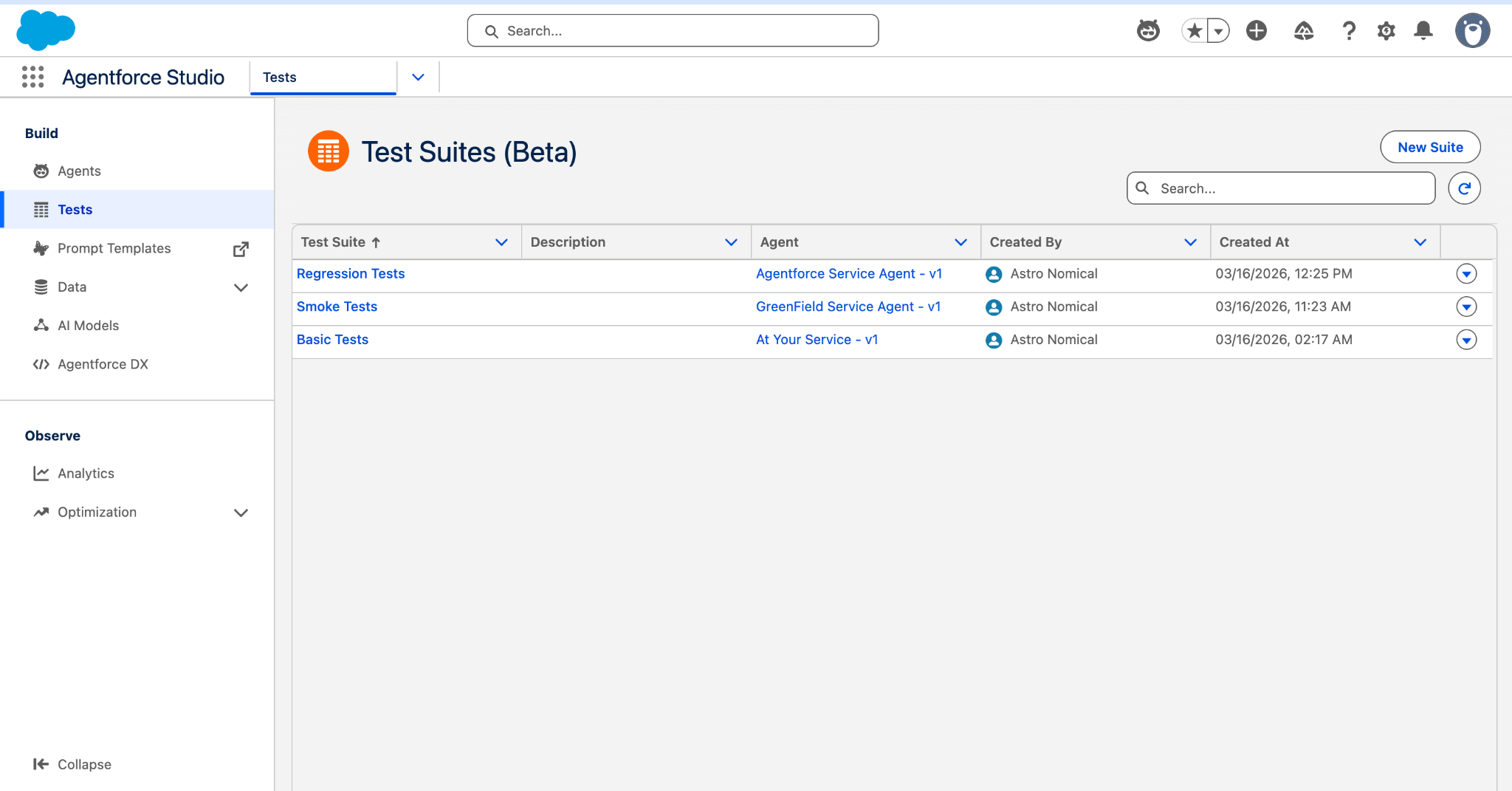
Testing Center used to live in Setup, disconnected from the tools you actually use to build your agent. To bring testing closer to the forefront, we’ve integrated it directly into Agentforce Studio as a dedicated tab alongside Agent Builder and Observability. Once you’ve built your agent (whether through the legacy builder or new agent builder), you can begin testing it immediately without having to navigate to another surface.
Agentforce Studio offers a more flexible user interface, as well as more powerful debugging capabilities. We’ve also added the ability to view run history, making it easy to evaluate agent performance over time by comparing historical test results.
Conversation-level testing
Up until now, testing an agent meant turn-by-turn testing: one user utterance, one agent response, one evaluation. While this was a helpful way of understanding how agents behave on a turn-by-turn basis, it didn’t provide a clear view of how agents function at scale in the real world.
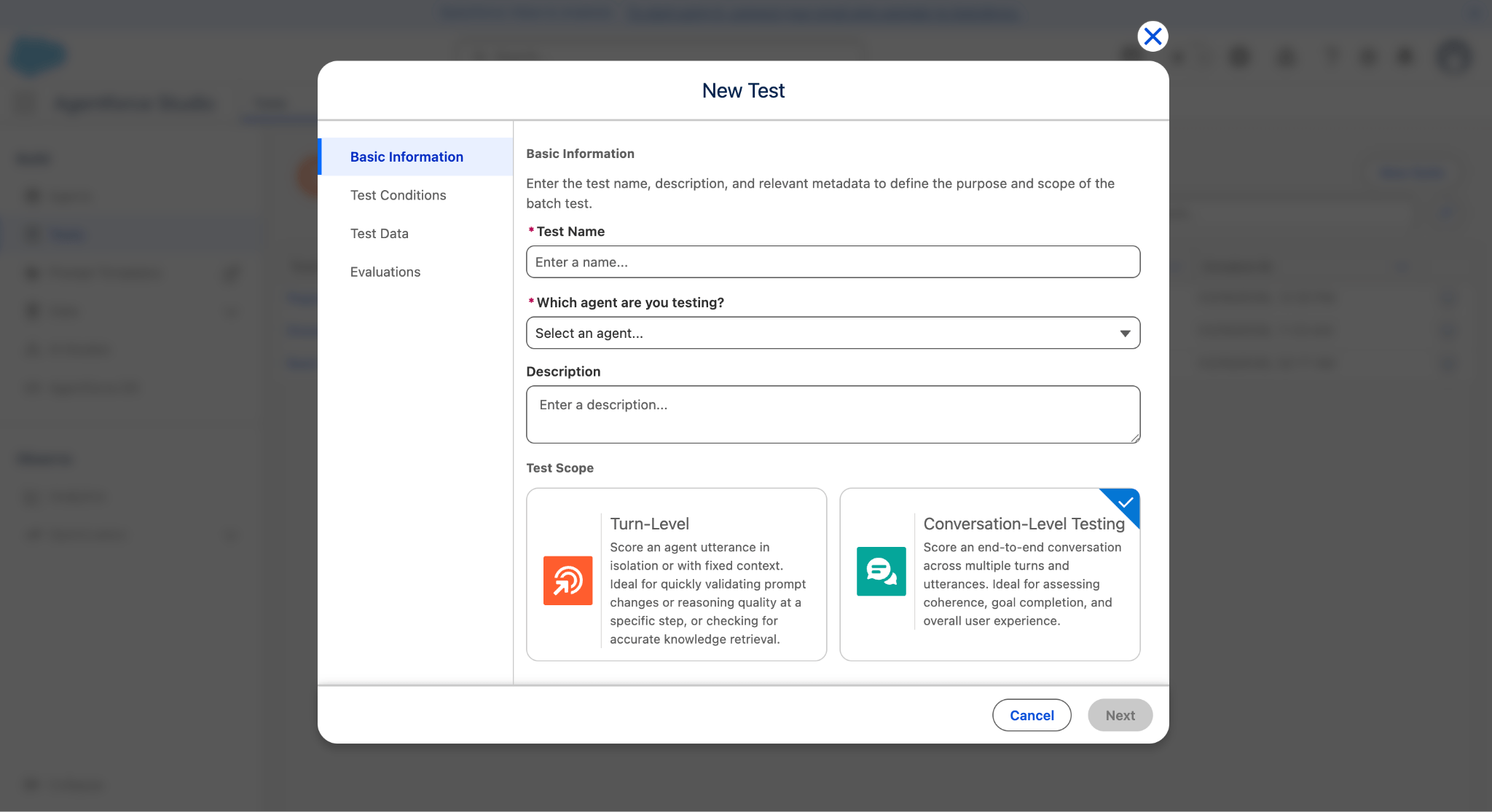
Conversation-level testing changes that. Instead of evaluating isolated exchanges, you can now test a full simulated conversation. When setting up a new test suite, you’ll now see an option for conversation testing. Here, you can select from a set of predefined personas like “frustrated customer,” “non-native English speaker,” or “distracted user.” The system then simulates that persona interacting with your agent across multiple turns and selected subagents, generating the conversation automatically and scoring it on metrics like task resolution, which measures how well the agent completes the user’s original request.
Voice agents are supported too. You can even play back the AI-generated voice conversations used in the test run.
Custom evaluations
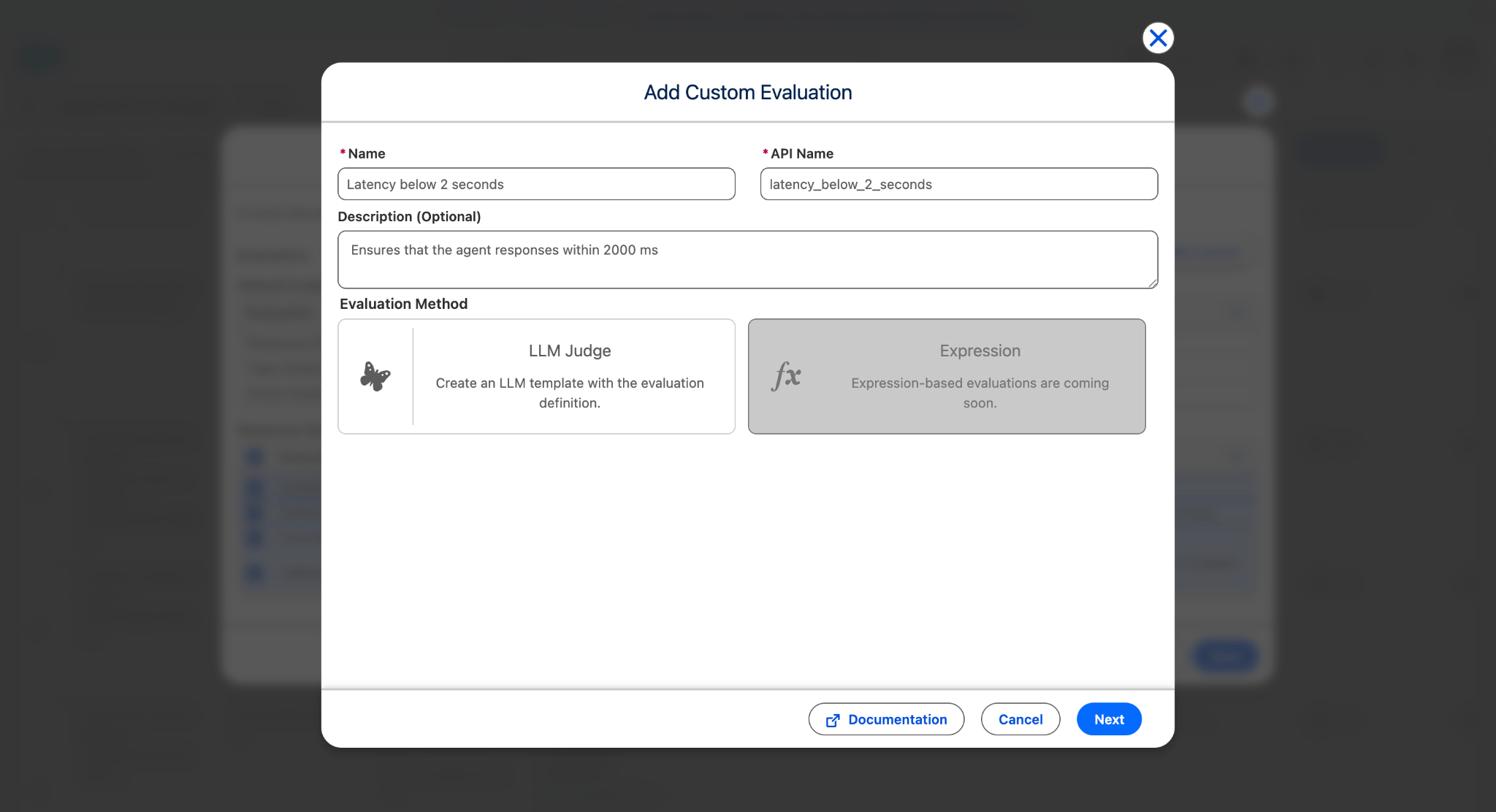
No one can define “good” better than the people building the agent and custom evaluations give you the ability to define your own scoring criteria. Within the test suite wizard, you’ll see an option to add a custom scorer. Define your evaluation criteria using natural language — for example, “Rate the politeness of the agent response on a scale of 0 to 5” — with descriptions of what each score level means and example responses. You can also set a pass/fail threshold. Once saved, your custom metric appears as a new column in the testing grid, right alongside the built-in evaluations.
Inline editing
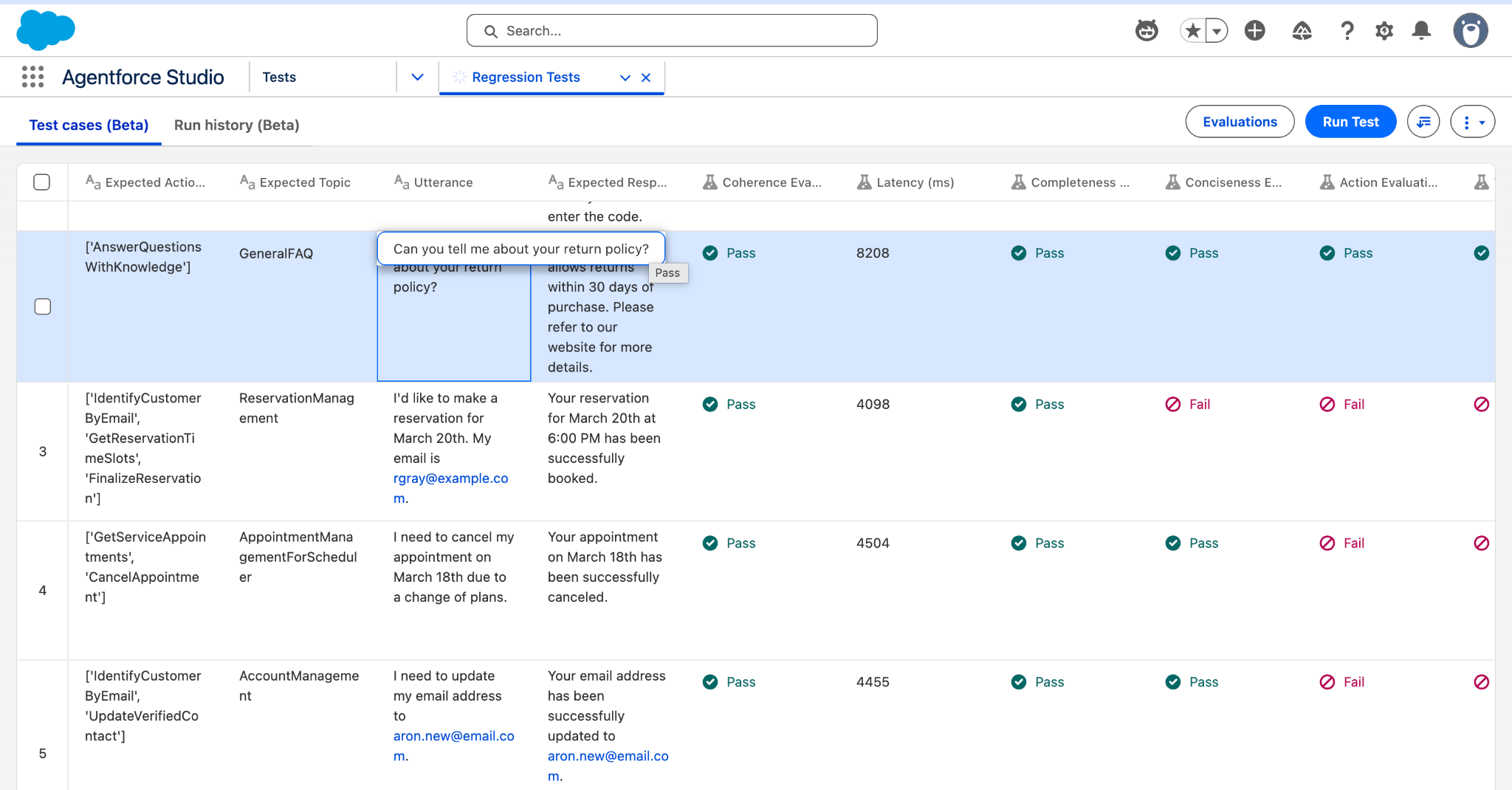
In the previous version of Testing Center, the test suite UI was uneditable. If you wanted to update an AI-generated test case, fix an expected value, or correct a response after a test failure, you had to download a CSV file, edit it locally, and re-upload it as a new test suite. With inline editing in the new Studio experience, you can click into any cell and edit it directly. Updating test cases, adjusting expected values, and correcting failures all happen right in the grid.
There’s also more flexibility in how you view your data. A new rich JSON viewer gives you column-by-column visibility into test results: scores, pass/fail status, LLM judge reasoning, and the full execution trace of the agent — which subagent was selected, which action was called, what the input and output were, and latency at every step. You can also add any of these attributes as a column in the testing grid, so you can surface latency or reasoning for every row in your suite at once.
Testing from the command line with ADLC Skills
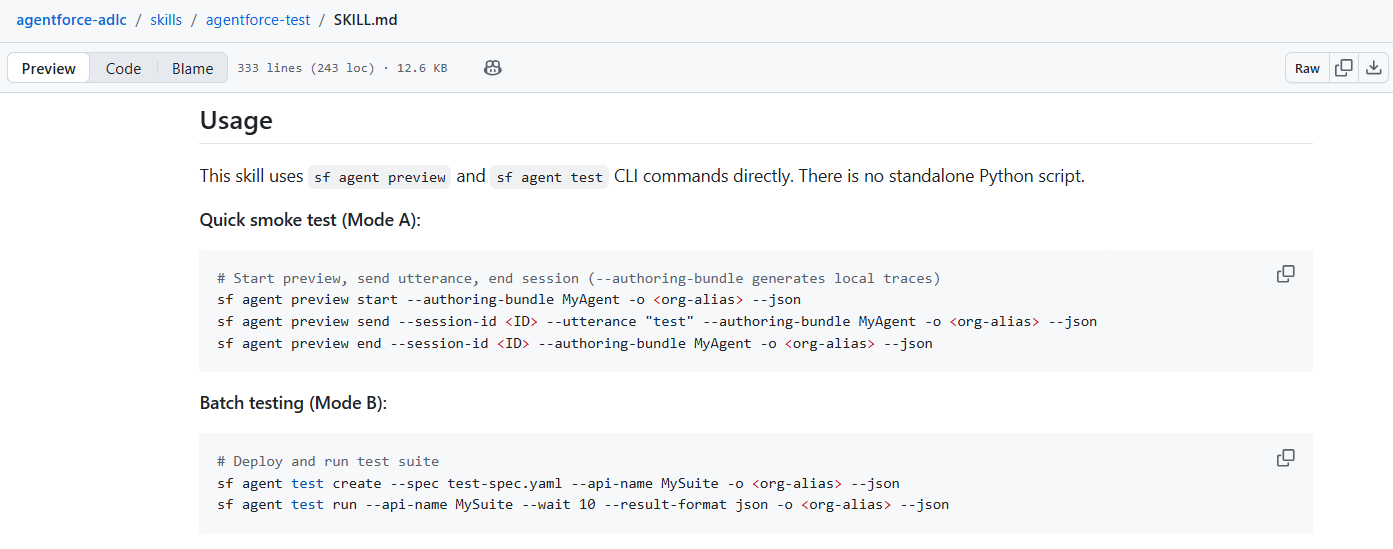
Salesforce’s ADLC (Agent Development Lifecycle) Skills are a set of CLI-based capabilities designed to support the full agent development lifecycle from the command line. Using the Salesforce CLI, developers can trigger test runs with sf agent run test, check on results with sf agent get test status, and retrieve outputs directly, all without opening a browser. This same experience extends to AI-powered IDEs like Cursor or Claude Code.
For teams running CI/CD pipelines, the CLI integrates with DevOps Testing Center, enabling quality gates that can block agent deployments until a test suite passes.
To learn more about Agentforce Testing Center, check out our documentation or watch this demo.